

Product tours push steps before anyone asks. Here is how to guide users inside your app only when they ask, using the help docs you already have.
Every small software team knows the support ticket that says "where do I find…?". The answer is almost always the same three clicks. You have written it in a help article, maybe recorded it in a video, and people still ask, because they are stuck inside your app and the article is somewhere else.
The usual fix is a product tour: a scripted sequence of tooltips that plays when someone signs up. Tours have a place, but they answer questions nobody has asked yet, and they cannot answer the question a customer has right now. This guide shows a different approach: guidance that waits for a question, then shows the way inside your app.
Why product tours miss the moment
A tour is written in advance. You guess what new users will need, you script the steps, and you show them on day one. That works for a small, predictable first-run path. It breaks down when:
- The question comes later. Most "how do I…" questions arrive weeks after signup, when the tour is long forgotten.
- The path depends on the user. A clinic owner and a receptionist need different screens. A tour shows everyone the same thing.
- The UI changes. Every redesign means re-scripting the tour, and an outdated tour is worse than none.
- People skip it. A tour that plays before someone has a goal gets closed.
What customers actually want is simpler: ask a question in their own words and be shown where to click.
Question-first guidance: how it works
The pattern has three parts:
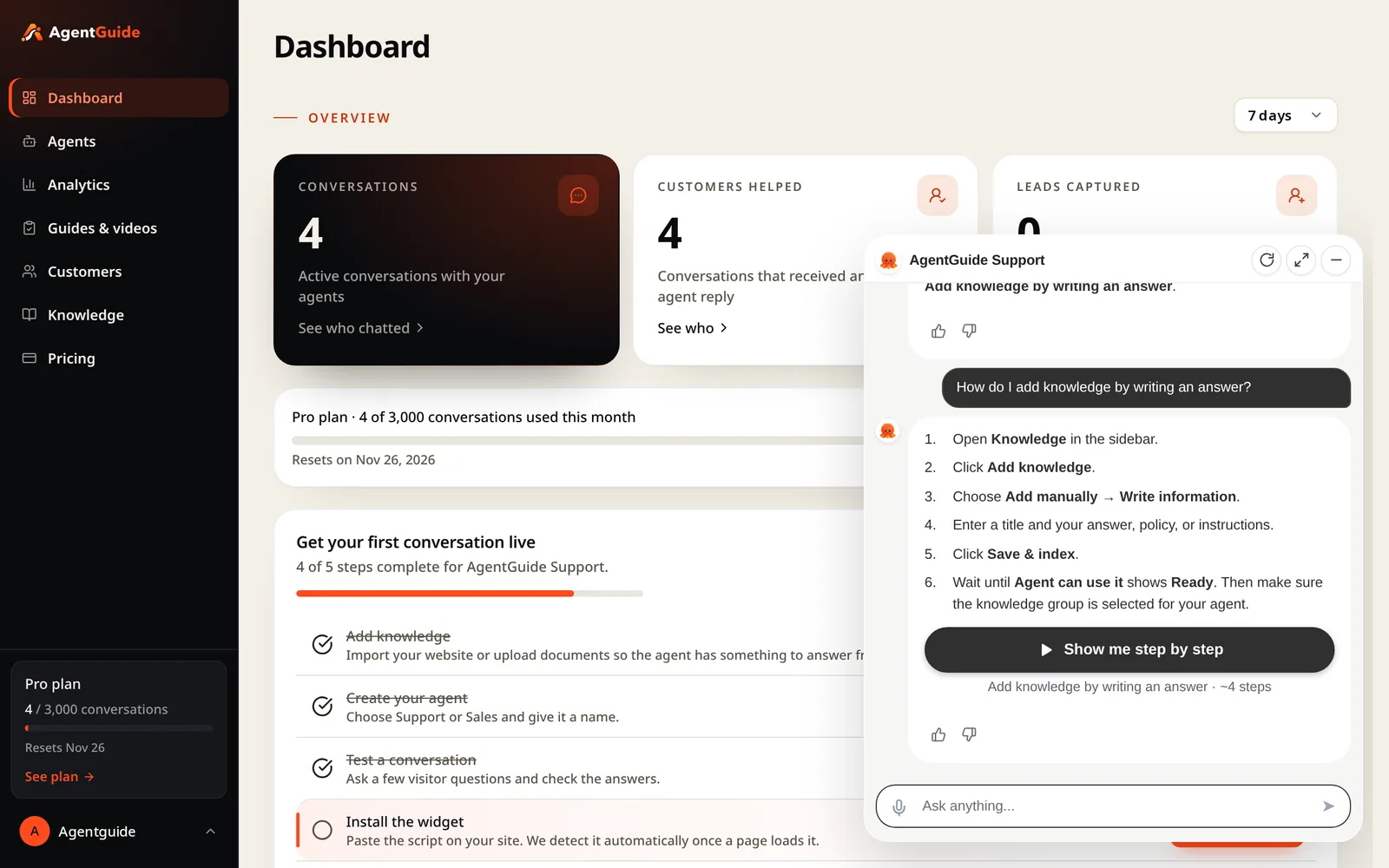
- Answer first. The customer asks in the chat. The agent answers from your help docs, in the customer's language.
- Offer to show the way. If a matching walkthrough exists, the answer comes with a button, for example "Show me step by step", with the guide name and number of steps.
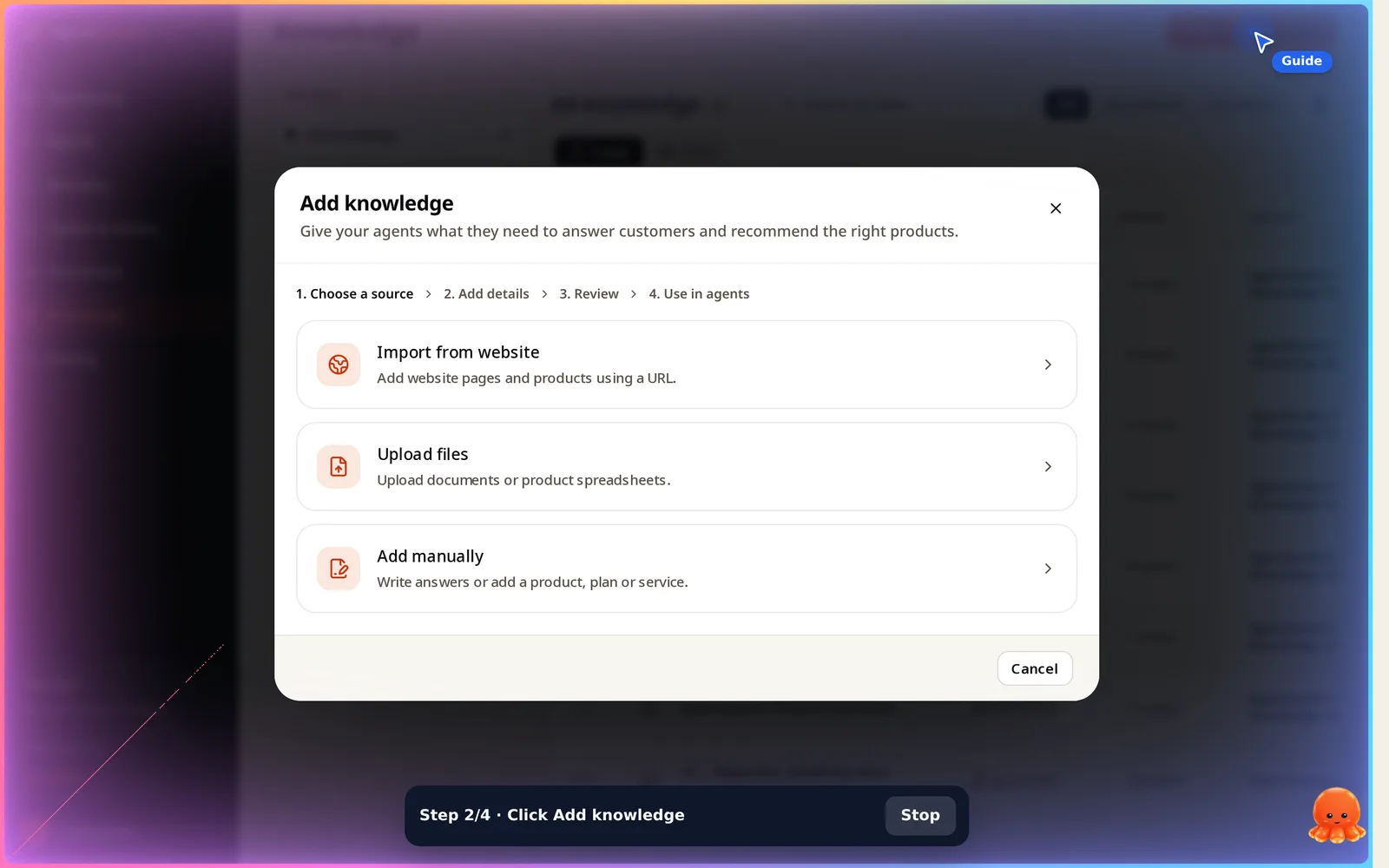
- Guide on the real screen. The customer clicks it, and each step is highlighted inside your app, one at a time.
In AgentGuide this is called Guide Me, and it is part of the Support Agent. The agent decides when a guide fits the question. You can let it suggest any guide that fits, or limit it to guides you choose.
The rule that matters: who clicks what
Guidance inside someone's account needs one clear rule. In Guide Me, every step has an owner:
- The assistant clicks it for the customer: menus, tabs and links that only move between screens.
- The customer types it: names, descriptions and any other form field.
- The customer clicks it: buttons that save, send, create or pay.
- Private info, the customer types it: passwords and other sensitive fields.
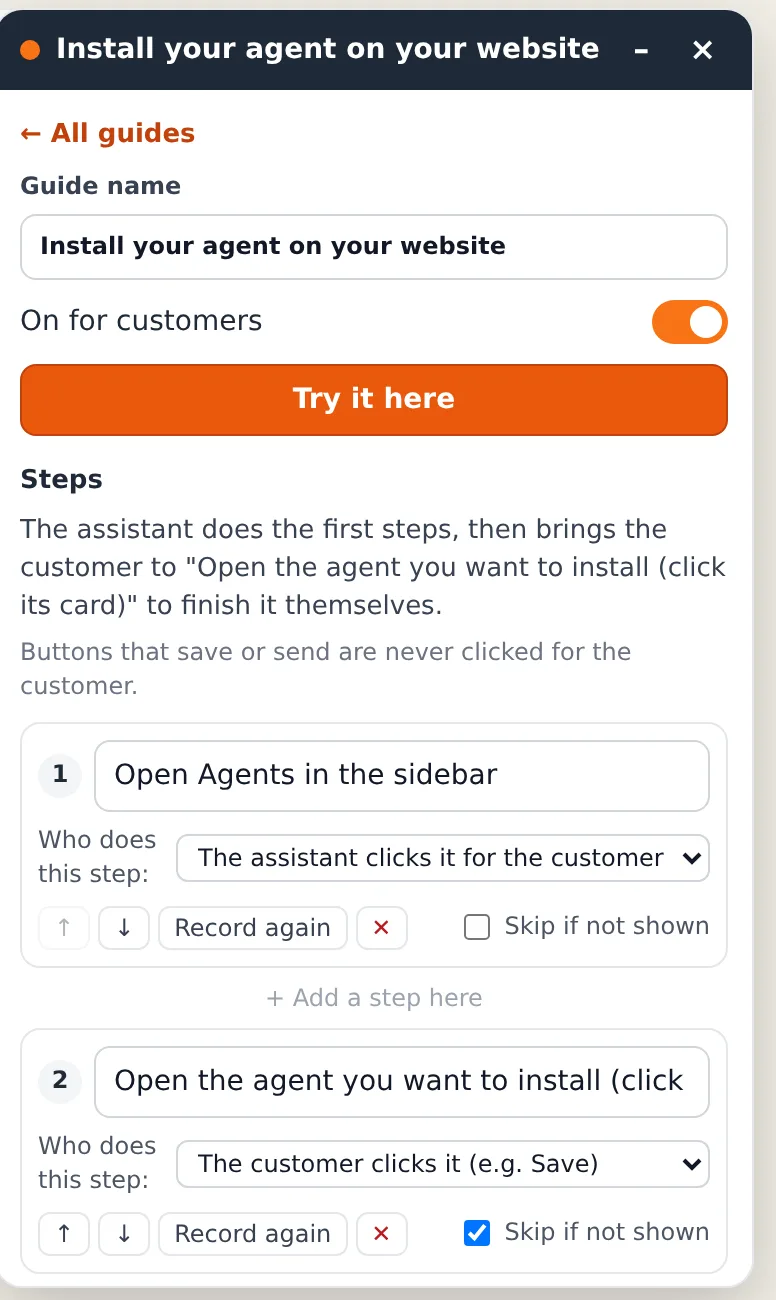
Buttons that save or send are never clicked for the customer. The agent brings them to the right screen and points at the field. The customer does the typing and makes the final click. That is a few more clicks for the user, but they never end up with a record they did not mean to create.
Two ways to create a guide
You do not need to script anything by hand.
1. Record it once in your app
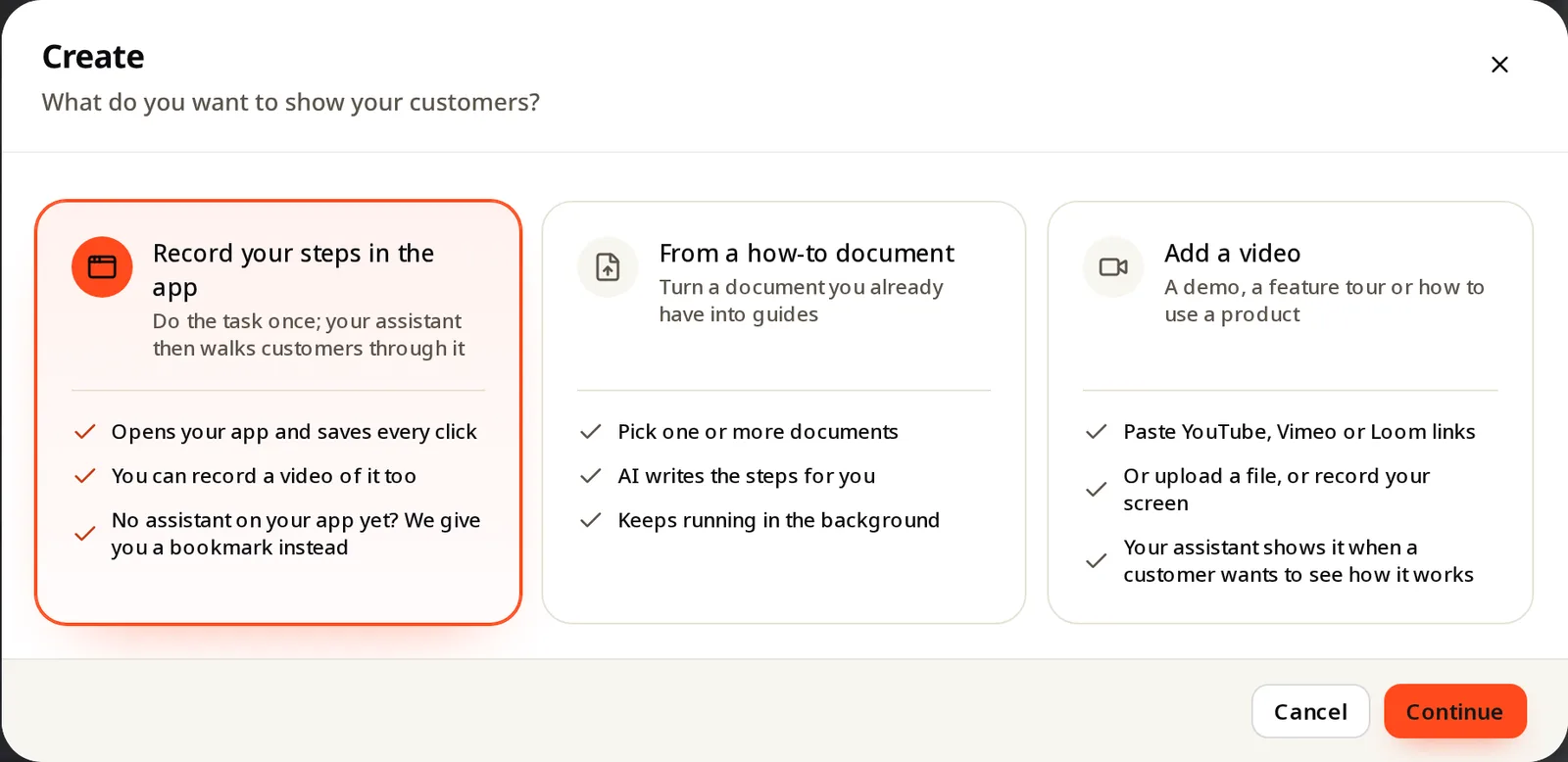
Open Guides & videos → Create → Record your steps in the app. Name the guide, press record, and do the task once in your app. Every click becomes a step.
- If your agent is already installed on your app, your app opens in a new tab with the recording panel.
- If it is not installed yet, you get a bookmark. Drag it to your bookmarks bar, open your app and click it. The same panel opens. Nothing to install.
After recording, the panel shows the steps. Rewrite a step's text in your own words, change who does it, or mark a step "Skip if not shown" for screens that only some users see.
2. Let AI write it from a how-to document
If you already have help articles, choose From a how-to document, pick one or more documents, and AI writes the steps. It runs in the background, so you can keep working.
You can also add how-to videos: paste YouTube, Vimeo or Loom links, upload an MP4, MOV or WebM file, or record your screen. The agent shows a video when a customer wants to see how something works.
Test before customers see it
New guides are off for customers until you turn them on. Each guide has a Try it here button that runs it on your own screen:
- "All steps worked" means you can turn it on.
- "It brought you to the right screen" means the last steps belong to the customer (typing or saving), which is expected.
- If a step fails, the panel tells you which one, so you can record that step again.
Run Try it here again after you change your UI. If a step no longer works, record that step again; you do not have to redo the whole guide.
What to guide first
Do not try to cover your whole app. Start where your support inbox hurts:
- List your ten most repeated "how do I…" questions. Your inbox and chat history already have them.
- Pick the ones with a clear path, where the answer is "go here, click this, fill that".
- Record one guide per task. Name it the way customers ask: "Add a team member", not "User management module".
- Make sure the help article exists too. The agent answers from your knowledge first, then offers the guide.
See what is working
In the Customers area you can filter people who used Guide Me, people whose question the agent couldn't answer, and answers that got bad feedback. The "couldn't answer" list is your to-do list: each item is either a missing help article or a missing guide.
How it is installed
The agent runs in your app through one script tag, the same one used on your website. It works with any stack: plain HTML, WordPress, Shopify, Wix, Webflow, Google Tag Manager, Next.js, React, Vue or Angular. In single-page apps the chat stays open while users move between screens. If your users sign in, you can identify them so each customer keeps their own conversation across devices.
Plans
Guide Me is included in every plan, including Free. Plans differ in how many guides and videos you can keep: 3 on Free, 5 on Starter, 50 on Growth and 300 on Pro. See pricing for the full comparison.
Summary
- Tours answer questions nobody asked yet. Question-first guidance answers the one your customer has now.
- Answer from your docs first, then offer to show the way on the real screen.
- Let the agent navigate. Leave typing, saving and paying to the customer.
- Create guides by doing the task once, or from a how-to document you already have.
- Test every guide, then watch the "couldn't answer" list to see what to add next.
Start free and record your first guide in a few minutes, or read more about the Support Agent.