

For service businesses whose price depends on the job: how a website agent answers first, asks the scoping questions, and sends you a quote request you can price.
When a visitor asks "how much would it cost?" and the honest answer is "it depends", a website agent should not invent a number. It should answer what it can from your own pages, ask the few questions you need to price the job, and send you a quote request with those details and the conversation attached. This guide shows how to set that up for agencies, event companies, clinics, home services and other businesses that quote per job.
Why "how much?" is the hardest website question
For a service business, price depends on scope: size, date, location, materials, urgency. So the usual website answer is a contact form that says "tell us about your project". Many visitors don't fill it in. Those who do often write one line, and your first call is spent asking the same scoping questions you ask everyone.
A good quote request flow fixes both: the visitor gets useful answers right away, and you get an inquiry you can actually price.
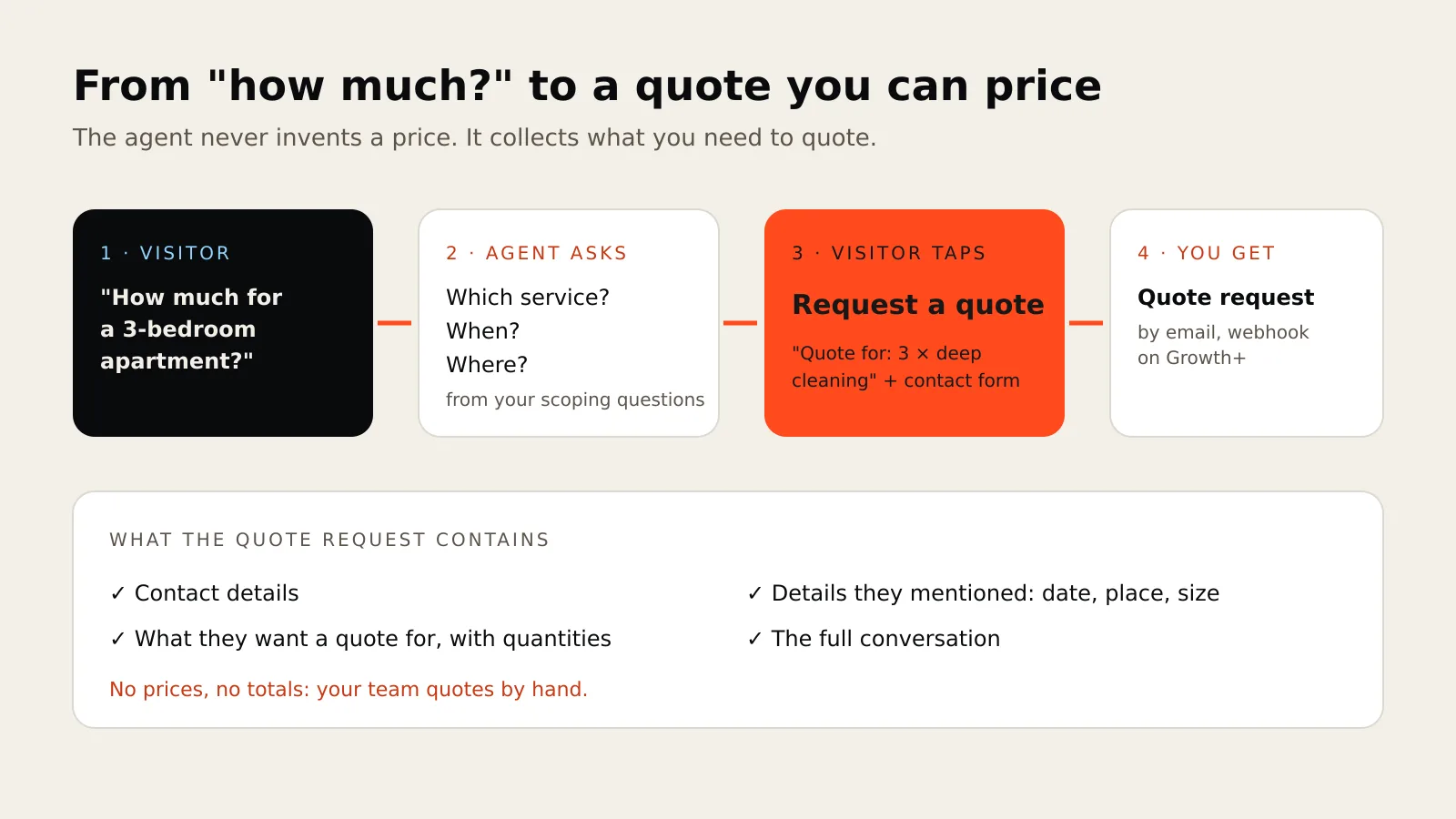
What the agent should do, in order
- Answer what your pages already say. What you do, who you work with, how the process works, typical timelines, any published starting prices.
- Ask the scoping questions. One at a time, in plain words: what service, how many, when, where, and the budget if it matters.
- Offer the next step at the right moment. When the visitor wants a price, the agent shows Request a quote. When they want to talk, it shows your call, WhatsApp or email buttons.
- Send you the request with context. What they asked for, what they told the agent, and the full conversation.
What it must not do
- Invent a price. If your prices are not in the agent's knowledge, it should say a quote depends on the details and offer to send a request. In AgentGuide, a quote request lists the items and quantities the visitor mentioned, with no prices and no totals: your team prices it.
- Promise availability or dates you haven't published.
- Push a form on every message. The buttons should appear when the visitor is ready, not as a wall in front of the answers.
Set it up in AgentGuide
1. Add what you can say publicly
In Knowledge → Add knowledge, import your service pages, FAQ and process pages, or write short answers manually. Include:
- each service and what it includes;
- how you work and typical timelines;
- published starting prices, if you have them;
- what you need from a customer to quote: the scoping questions you ask on every call;
- what you don't do, so the agent can say so.
The scoping questions matter most. If your knowledge says "for a quote we need the room size, the date and the location", the agent knows what to ask.
2. Turn on the contact form
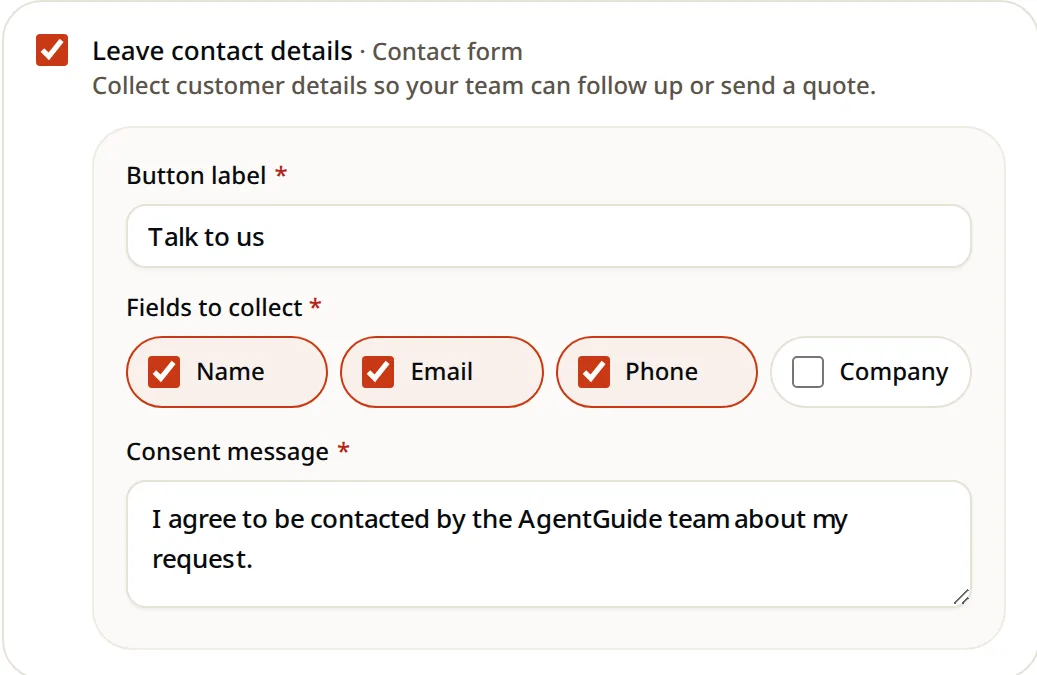
On the Sales agent, under Help customers take the next step, enable Leave contact details · Contact form and choose the fields: name, email, phone, company, plus your consent message.
When the contact form is on, the agent also gets a Request a quote button that uses the same form. It shows that button when the visitor wants a price, and your plain contact button when they just want to be contacted. Above the form, the visitor sees what the quote is for, for example "Quote for: 3 × deep cleaning".
3. Add direct contact for urgent jobs
Some visitors want to talk now. Add Call or message directly with your phone, WhatsApp or email, so they can reach you without waiting.
4. Decide where requests go
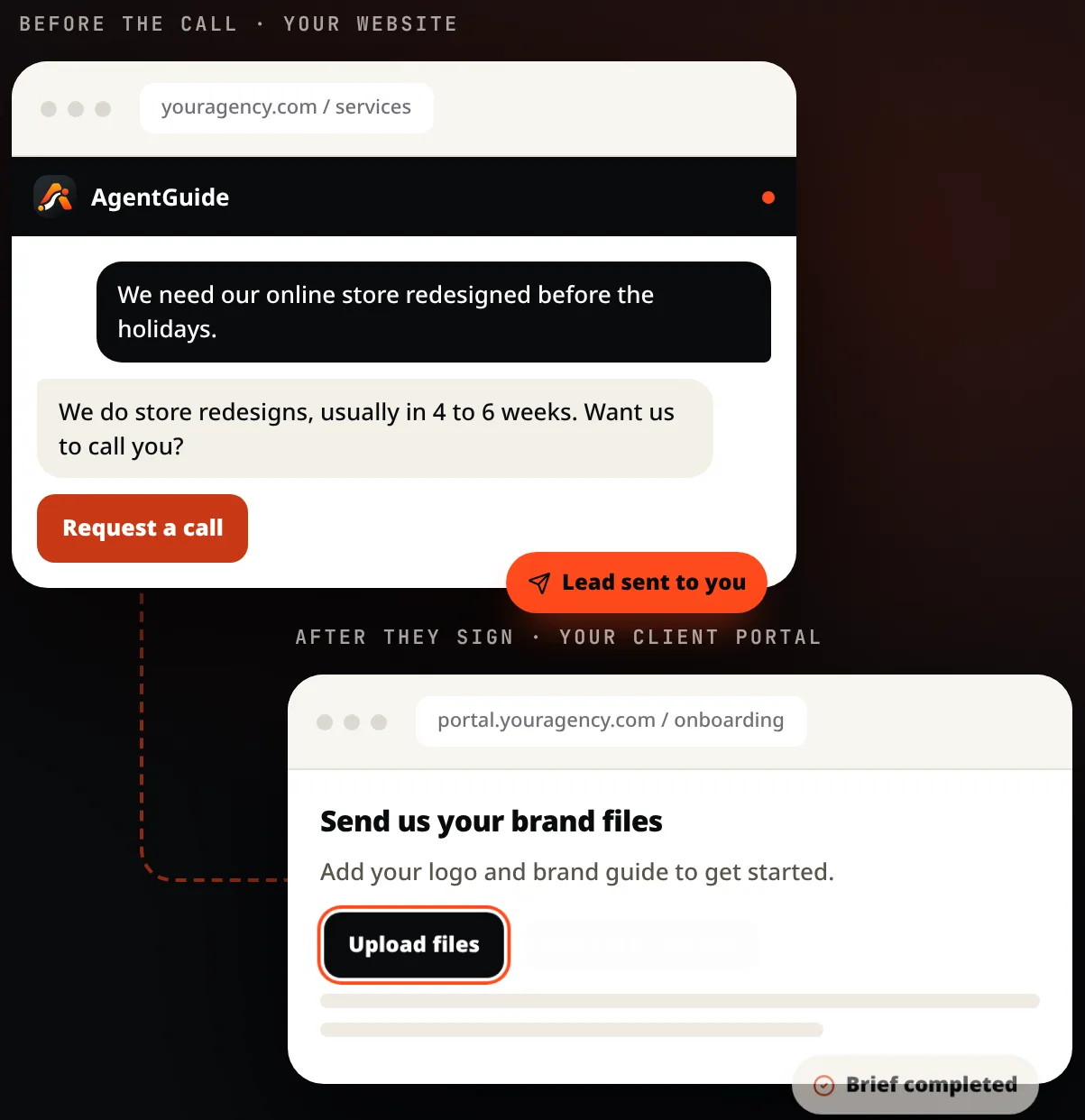
Lead alerts arrive by email; add teammates in Account settings → Notifications. A quote request arrives marked as Quote request, with:
- the visitor's contact details;
- what they want a quote for, with quantities when they stated one;
- their goal and the details they mentioned, such as date, location or size;
- the conversation.
On Growth and higher, you can also score leads with your own qualifying questions, get an alert when a lead qualifies, and send leads to your CRM or other apps by webhook. Quote requests are included in the webhook payload.
5. Open the conversation on service pages
Add Questions to start a chat on each service page, for example "How much would this cost for my home?" or "How soon can you start?". Visitors tap instead of typing, and the agent starts with the right context.
Test with your real inquiries
Use Test agent (test chats are not counted) and paste in real questions from your inbox:
- "How much for a 3-bedroom apartment?" The agent should ask what it needs, not guess.
- "Can you do it next Saturday?" If availability isn't published, it should say so and offer the quote request.
- "Do you work outside the city?" It should answer from your service area, or say it doesn't know.
Then check the alert in your inbox: does it contain everything you need to price the job? If not, add the missing question to your knowledge.
Summary
- Don't quote prices the agent doesn't have; collect what you need to quote.
- Put your scoping questions in the knowledge so the agent asks them.
- One contact form gives you both "contact me" and Request a quote.
- Quote requests arrive with items, quantities, details and the conversation, ready to price.
- Test with real inquiries and fix the knowledge, not the visitor.
See AgentGuide for services and agencies, read the full sales agent setup, or start free with no credit card.