

An in-app AI agent can navigate for your users, but saving, sending and paying should stay with them. How we drew that line, and what it costs and protects.
No, not by default. An AI agent inside your app should move users to the right screen and point at what to do next, but the clicks that change data (Save, Send, Delete, Pay) should stay with the user. That is the rule Guide Me follows, and this post explains why we built it that way, what it costs, and how to apply the same rule if you build your own.
The question every in-app agent has to answer
Once an AI agent can see your app, it is tempting to let it do the whole task. "Create a work area called Front Desk" becomes one sentence, and the agent fills the form and presses Save.
Some newer tools are built exactly like that: the agent sees the screen and acts for the user. It looks impressive in a demo. Inside a real customer account it raises harder questions:
- Did the agent understand which record the user meant?
- Was the value it typed the value the user wanted?
- If something goes wrong, who made the change, and can it be undone?
Most consequential actions in business software are hard to reverse. A sent invoice, a deleted customer, a confirmed booking or a charged card all reach other people. Guidance on human-in-the-loop agents from AWS and others makes the same point for back-end agents: ask a person to confirm before an agent changes state, and scale the oversight to the risk.
Our answer: the agent navigates, the customer commits
Guide Me sorts every step of a guide into one of four kinds and gives each a fixed owner:
| Step kind | Example | Who does it |
|---|---|---|
| Navigate | Open Knowledge in the sidebar, open a tab or menu | The assistant clicks it for the customer |
| Data entry | Type a name, pick a date, choose an option | The customer types it |
| Commit | Save, Send, Create, Pay, confirm in a dialog | The customer clicks it |
| Private info | Passwords and other sensitive fields | The customer types it |
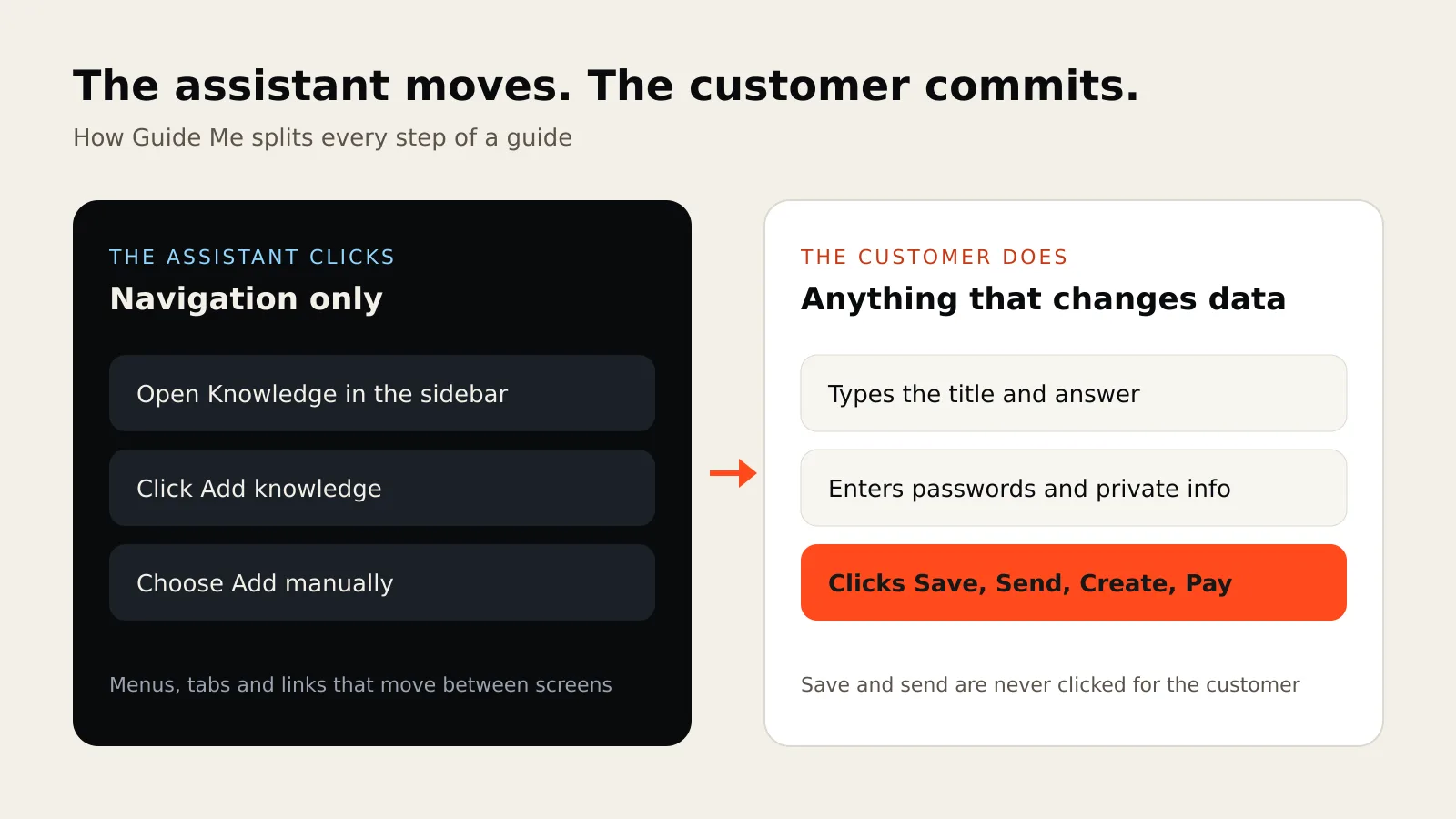
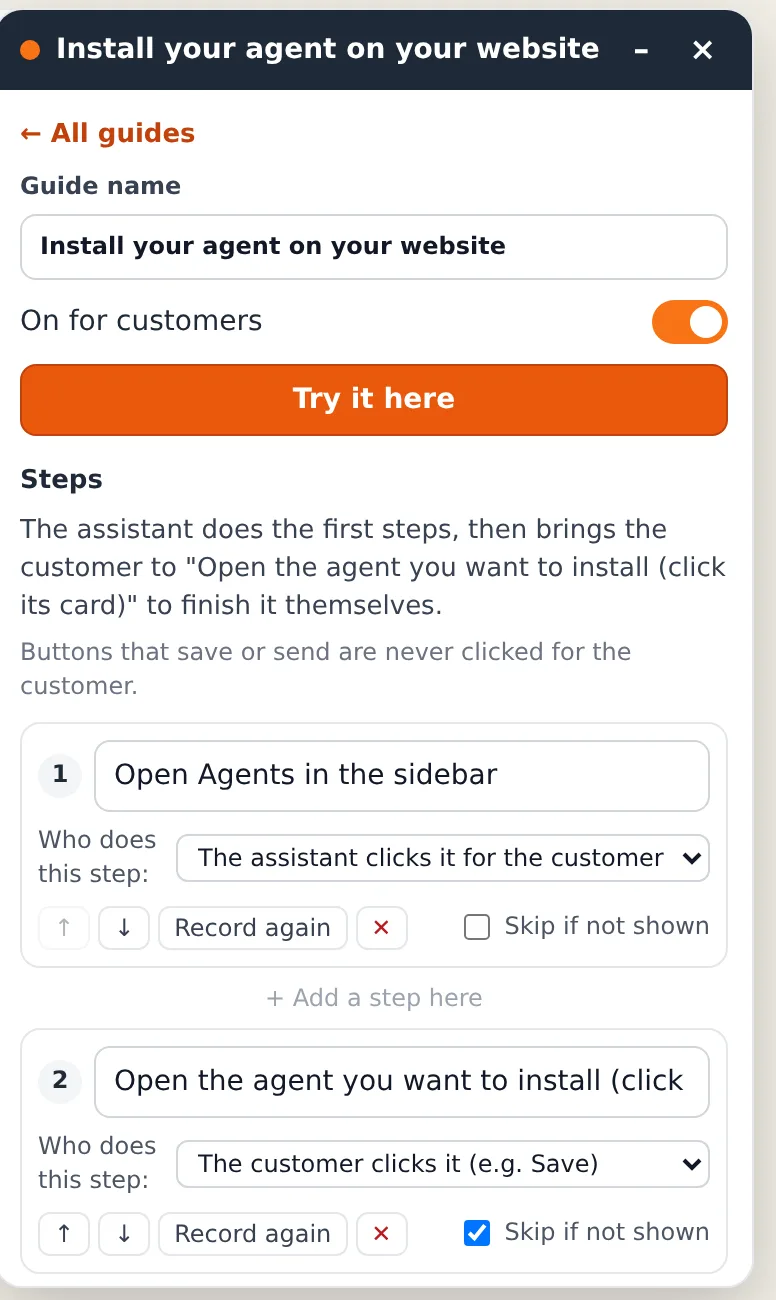
The rule in the guide editor is written in one line: buttons that save or send are never clicked for the customer.
When you record a guide, the recorder suggests the kind for each step from what you clicked. Submit buttons, buttons inside confirmation dialogs and actions that write data are marked as commit steps. Password fields are marked private. Form fields become data entry. Everything else is navigation. You can change the owner of any step if the suggestion is wrong.
What the customer sees
The customer asks a question in the chat. The agent answers from your help docs, then offers Show me step by step. From there:
- Guide Me performs the navigation steps and highlights each one, so the customer sees where they are going.
- When it reaches a step the customer owns, it stops and says so: the bar shows Your turn and the field or button is highlighted.
- The customer types, checks and clicks the final button themselves.
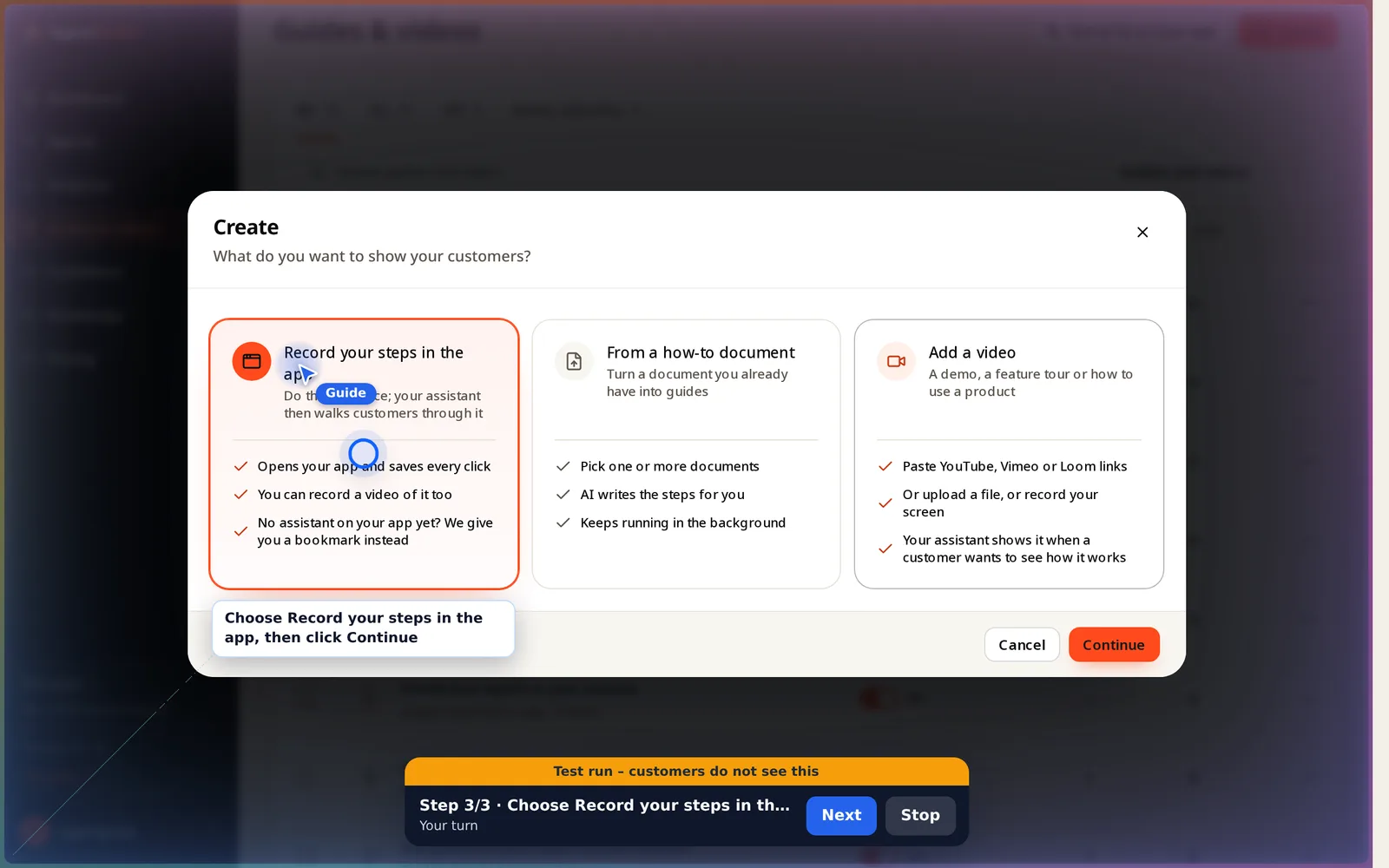
When you test a guide with Try it here, a guide that ends on customer steps reports "It brought you to the right screen. The last steps are ones the customer does." That is the expected result, not a failure.
What this costs
This choice is not free, and it is fair to say so.
- More clicks for the user. A fully autonomous agent can finish a form in one go. With Guide Me the user still types the values and clicks Save.
- It is guidance, not automation. If your goal is to complete repetitive back-office work without a person, an in-app guide is the wrong tool. Use your product's API or a workflow tool with proper approvals.
- Long forms stay long. Guide Me shows the way to each field but does not invent the values.
What it protects
- No surprise changes. Nothing is saved, sent, deleted or paid unless the customer clicked it.
- Clear responsibility. The person who made the change is the person who clicked. Your audit trail and your support conversations stay simple.
- Fewer wrong guesses. Values come from the customer, not from the agent's reading of a sentence.
- Trust you can explain. "The assistant shows you the way; you confirm" is easy to say on a sales call or in a security review.
There is a practical benefit for your team too: a guide that only navigates has fewer steps that can go wrong than one that must fill and submit a form correctly every time. When a step stops working after a UI change, you record that one step again.
If you are building your own in-app agent
The same rule works whatever tool you use:
- Classify every action by impact. Moving between screens is low risk. Writing, sending, deleting and paying are not.
- Let the agent do the low-risk part only. Navigation, opening menus, scrolling to the right section.
- Hand over at the first state change. Highlight the field or button and explain what it does.
- Never handle secrets. Passwords and payment details are typed by the person, always.
- Make the owner visible. Users should be able to tell at a glance whether the agent is about to click or waiting for them.
- Test each flow on the real screen before turning it on, and again after UI changes.
Summary
- An in-app agent should navigate, not commit.
- Guide Me gives every step an owner: the assistant clicks menus and links; the customer types, saves, sends and pays.
- The cost is a few more clicks. The benefit is no surprise changes and a clear line of responsibility.
- Learn how guides are created in How to show users where to click, without building product tours, or see the Support Agent.
Start free and record your first guide; Guide Me is included in every plan.