

When a buyer asks "how does it work?", your AI sales agent can play the one video that answers it, right in the chat. Use cases for SaaS, stores and tours, plus setup.
"How does the import work?" "How do I fold it?" "What does the room look like?" A buyer who asks this wants to see it before they decide. A paragraph of text rarely convinces them. A 30-second video often does.
You probably have those videos already: a demo on YouTube, a Loom you sent a customer last month, a product clip from your supplier. The problem is that buyers don't find them. With Show your videos, your AI sales agent picks the one video that answers the question and plays it right in the chat, next to its answer. This post shows who it helps most, which videos to add first, and how to set it up in a few minutes.
Why your videos don't sell today
- They are in the wrong place. A demo on your YouTube channel or deep in a help page is not there when a buyer asks the question on your pricing page.
- Buyers don't search for videos. They ask "how does it work?" and wait for an answer. If the answer is text, many leave to "think about it".
- A video library is too much. A page of 20 videos makes the buyer do the work of finding the right one.
- Your team can't send a video to every visitor. That works on a sales call, not for the hundreds of visitors who never book one.
How it works for the buyer
- They ask a question in the chat, in their own words.
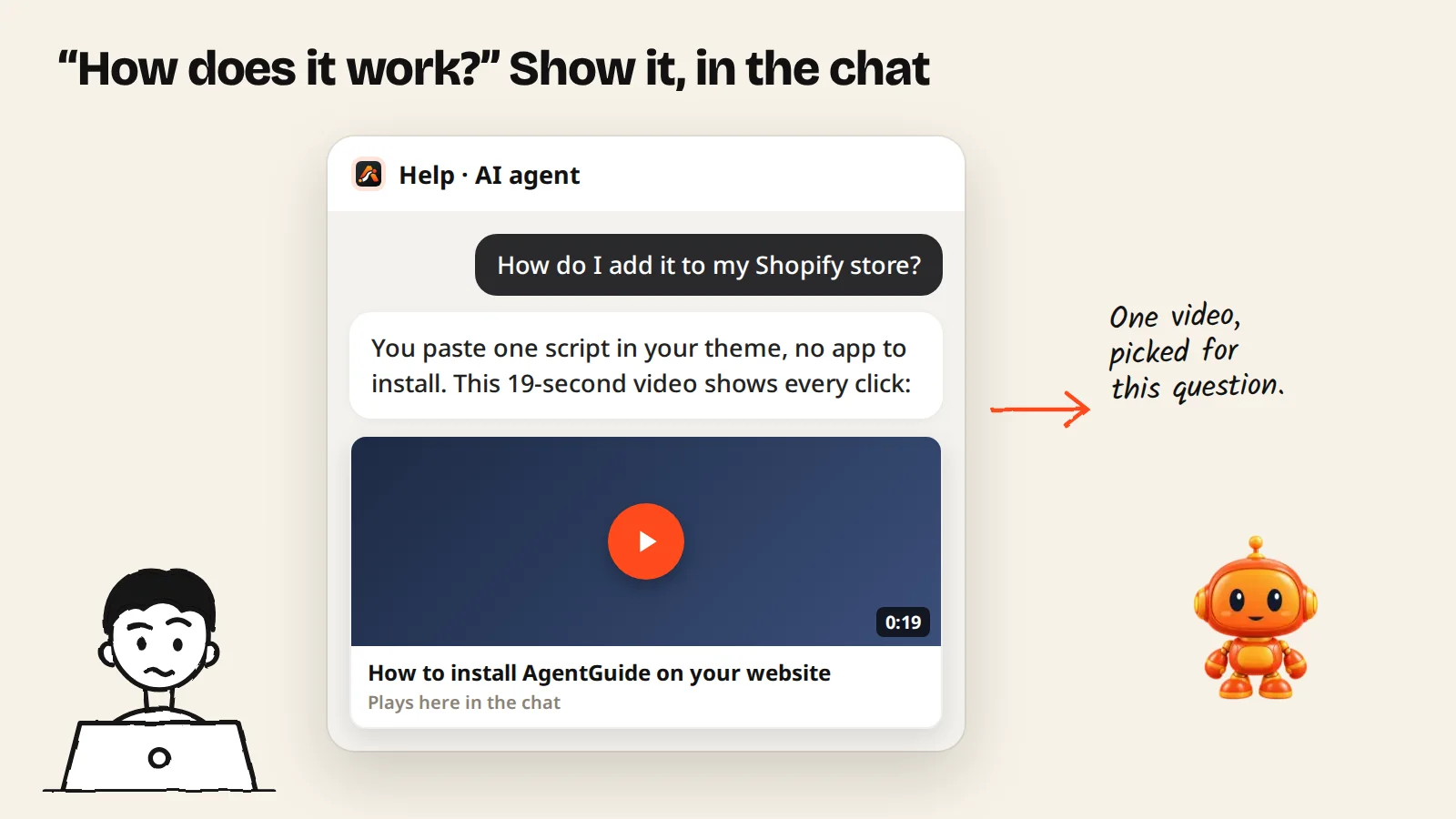
- When the question is about seeing how something works, the agent answers briefly and adds one video card: the picture, the name and the length.
- They tap it and the video plays in the chat. They stay on your page.
- The agent never shows the same video twice in a conversation, so the next "show me" gets a different video or a text answer.
The agent chooses only from videos you let customers see, and only when one fits. A question about price gets a price, not a video.
Three kinds of business, three kinds of video
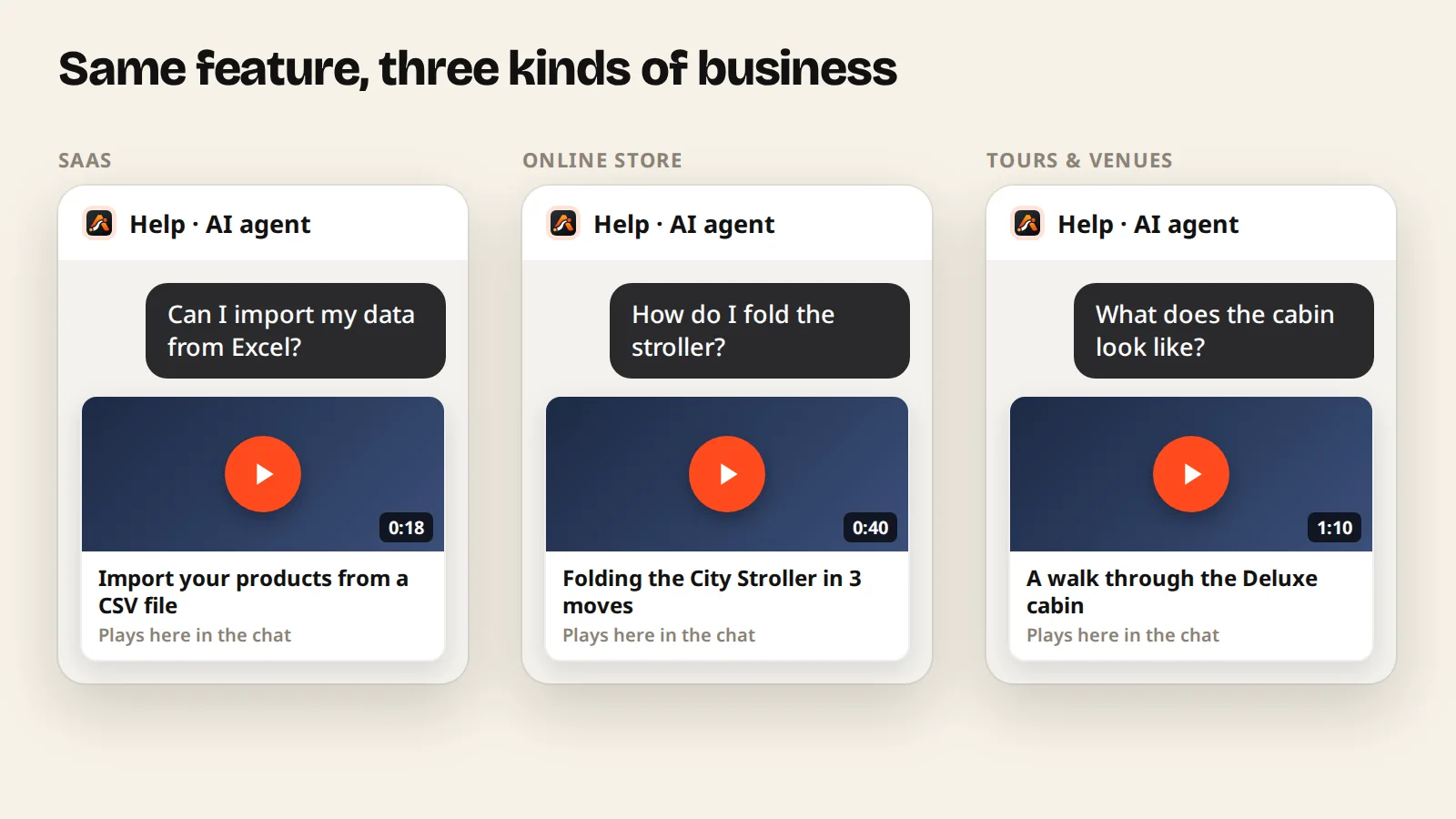
SaaS: show the feature before the sign-up
Buyers of software ask "can it do X?" and "how hard is it?". A short screen recording answers both: yes, and this is how easy.
- Videos to add first: a 2-minute tour, and one short video for each feature people ask about before signing up (importing data, connecting a tool, inviting the team).
- Where it matters: pricing and feature pages, where the Sales agent decides between "explain it" and "show it".
- Bonus: if you record a guide with its video in Guides & videos, the agent's guide card offers that video too, so a buyer can watch first and try later.
Online stores: show the product in use
Photos show what a product looks like. Video shows how it works: how a stroller folds, how a jacket fits when moving, how a gadget is set up.
- Videos to add first: your best sellers in use, set-up or assembly videos, and "how to choose a size".
- Where it matters: product pages for items with questions ("is it easy to set up?", "how big is it really?").
- Works with your catalog: the agent still recommends from your products with prices and stock, and adds a video only when the shopper wants to see how something works. See product recommendations.
Tours, venues and services: show the experience
When you sell an experience (a cruise, a hotel room, a class, a renovation), the buyer wants to picture it before they pay or ask for a quote.
- Videos to add first: a walk-through of each room or package, a "what happens on the day" video, and before-and-after work.
- Where it matters: package and booking pages, right before the visitor asks for a quote.
- Then the next step: after the video, the agent offers the next step you set: book, call, WhatsApp or a quote form. See quote request chatbot.
Set it up in four steps
- Add your videos in Guides & videos → Add a video: paste YouTube, Vimeo or Loom links (several at once is fine), upload an MP4, MOV or WebM file, or record your screen in the browser.
- Describe each video in What this video shows, in one sentence the way a buyer would ask: "How to fold and unfold the City Stroller with one hand". The agent reads the name and this sentence to pick a video.
- Turn on Show to customers for each video the agent may send. Videos your team uses internally stay private.
- On your Sales agent, turn on Show your videos and choose Suggest any video that fits (automatic) or Only videos I choose.
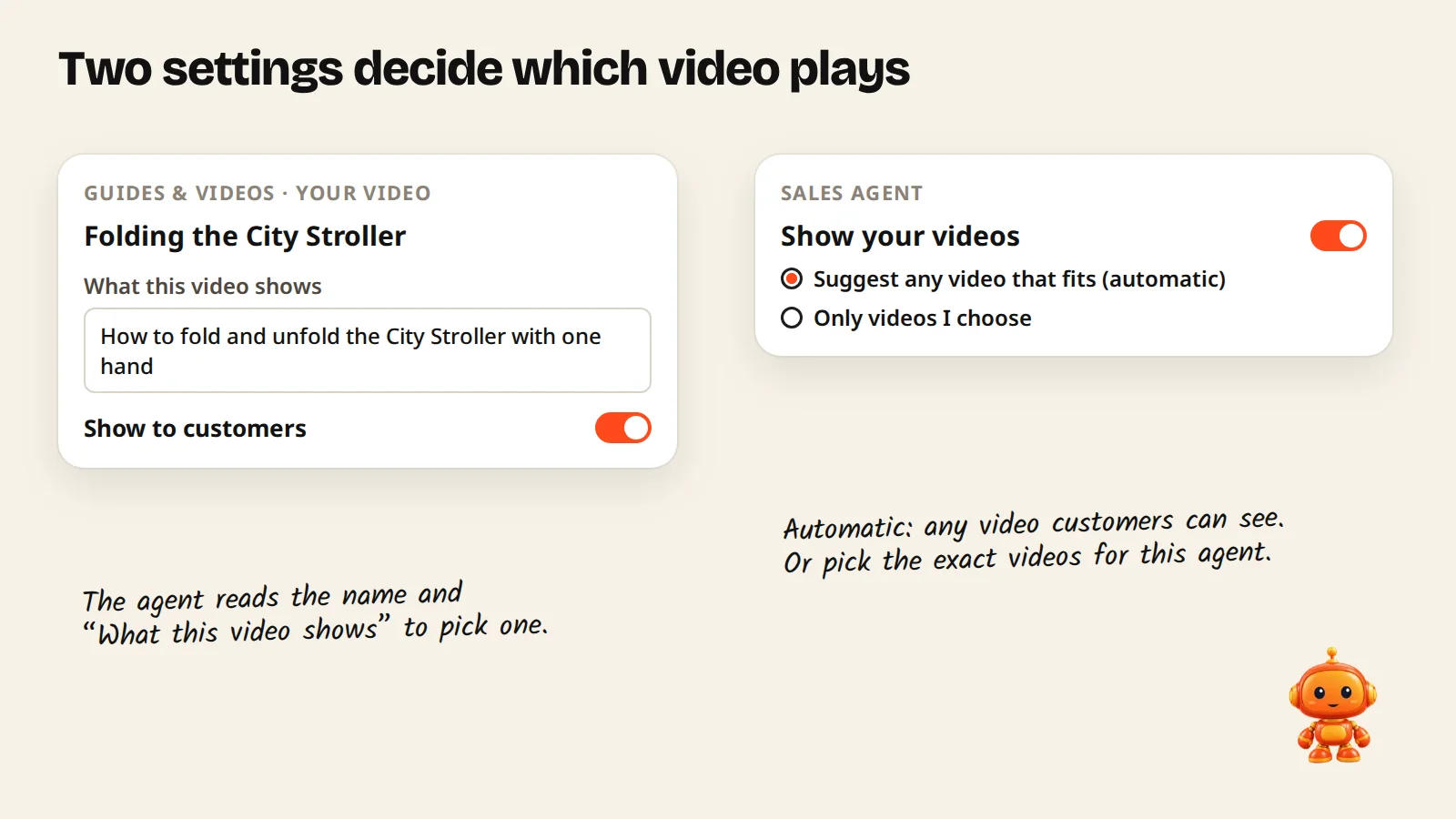
Automatic or chosen? Automatic uses every video customers can see, including ones you add later. Choose Only videos I choose when you have more than one agent and each should show its own videos (for example, a Sales agent with demos and a Support agent with how-to videos), or when some public videos don't fit sales chats. Full steps are in the docs.
Know what they watched
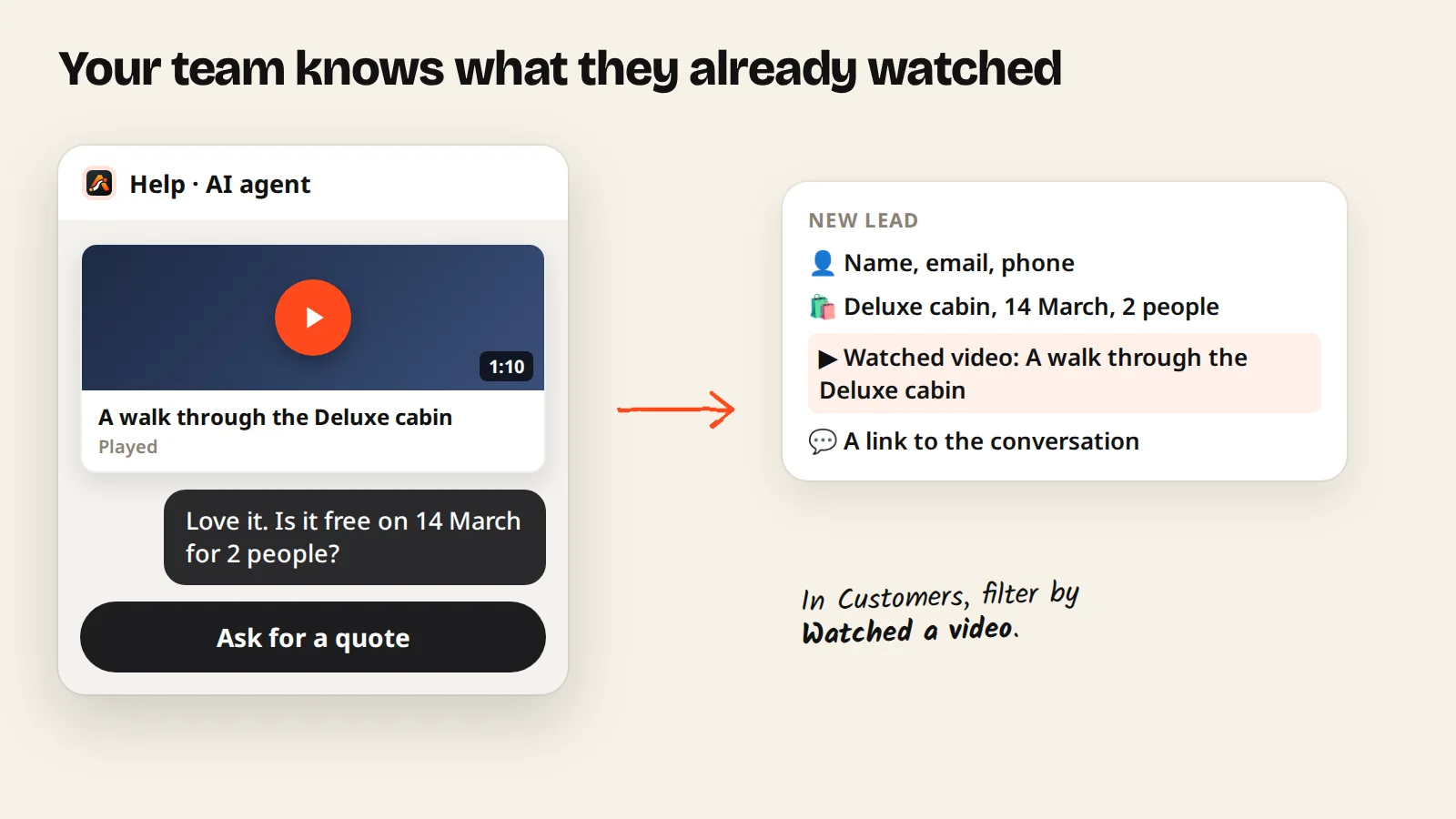
When a buyer plays a video and later leaves their details, the lead shows Watched video with the video's name. Your team can follow up from what the buyer already saw instead of starting from zero. Under Customers, filter by Watched a video to read those conversations.
Tips for videos that sell
- One question per video. "How to import a CSV" beats "Product overview part 3".
- Keep it short. 20 to 90 seconds is enough for most "show me" questions.
- Name it the way buyers ask. The name appears on the card, so make it a promise: "Folding the City Stroller in 3 moves".
- Start with the questions you already get. Check Customers for "how does it work" questions, and make a video for the top three.
- Update when the product changes. An old screen in a demo costs trust. Replace the video and keep the same name.
Plans
Show your videos works on every plan, including Free. Videos count with guides: up to 3 guides and videos on Free, 5 on Starter, 50 on Growth and 300 on Pro. See pricing.
Summary
- Buyers who want to see something decide faster after a short video.
- Your Sales agent picks one video that fits the question and plays it in the chat.
- It works for software demos, products in use and experiences you sell.
- Add videos, describe what each shows, let customers see them, and turn on Show your videos.
Start free and let your videos answer the "show me" questions, or read the setup docs.