

Help center search returns a list of articles. An AI agent on the same pages answers the question from those articles, hands off when it can't, and shows you which articles are missing.
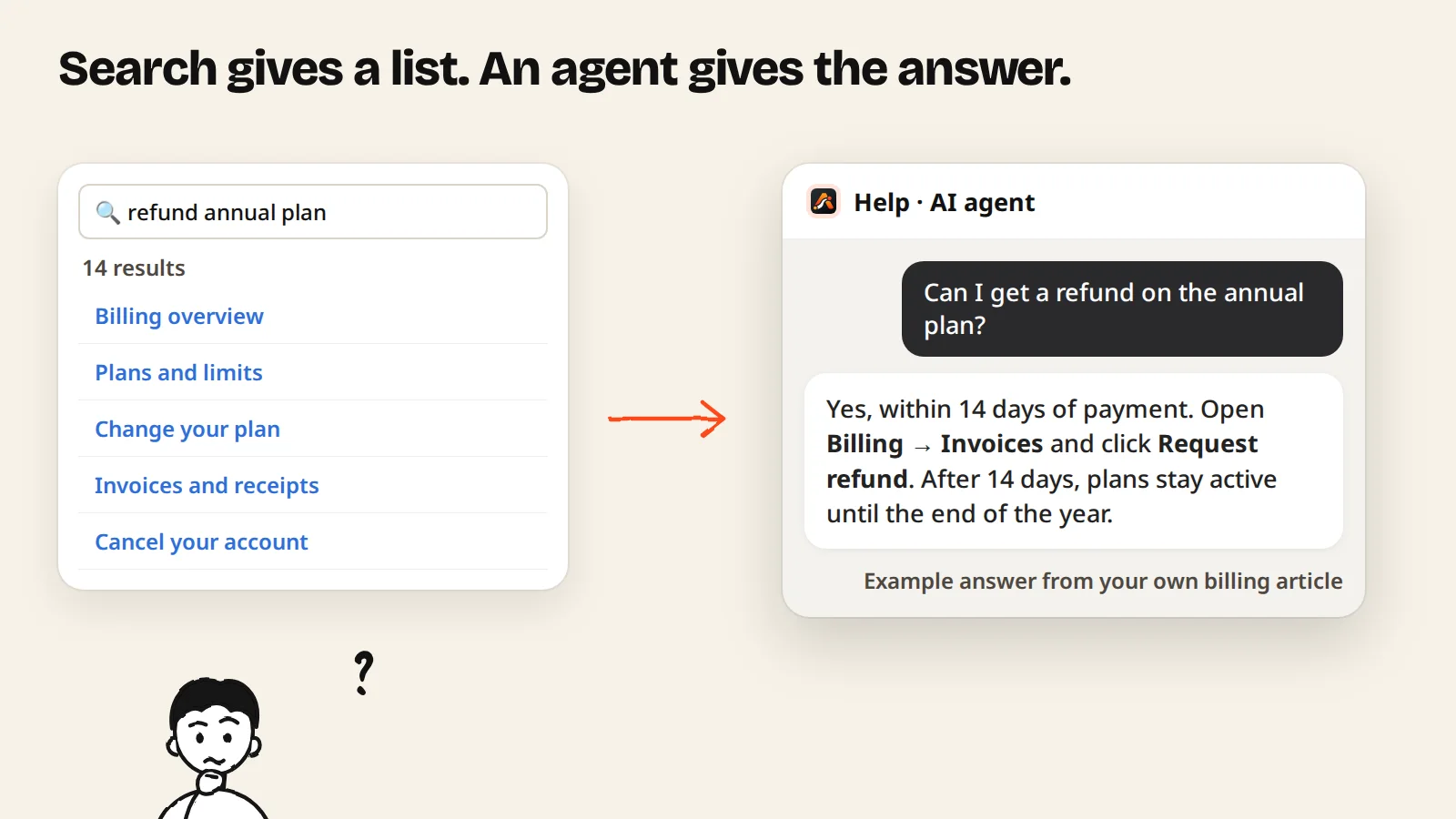
You wrote the help articles. Customers still email you the questions they answer. The articles are not the problem: finding the right one is. Search returns a list of titles, the customer opens two, skims, and gives up.
An AI agent on your help center turns that around. The customer asks in their own words, and the agent answers from your articles, in a few sentences, with the steps. When your articles don't cover the question, it says so and hands off to your team instead of guessing. This post shows how to set that up with AgentGuide.
Why help center search isn't enough
- Customers don't know your words. They search "refund", your article is called "Billing overview".
- The answer is spread out. Half is in one article, the condition is in another.
- A list is more work. Every result is a page to open and read.
- You can't see what failed. A search with no good result leaves no trace in your inbox.
An agent fixes the first three by reading the articles for the customer. The fourth is where it pays off for you: every question it couldn't answer is recorded.
1. Import your help articles
Open Knowledge → Add knowledge → Import from website → Website information, enter your help center address and choose Entire website. AgentGuide finds your pages (up to 250 per import), and you pick which ones to keep. You can also upload PDF, DOCX, TXT or MD files, or write an answer by hand for things that aren't published anywhere.
Two tips:
- Keep help content in its own knowledge group and give that group to the agent. Your marketing pages and old sales material stay out of support answers.
- Import again after you update articles. The agent answers from what was imported.
More detail in how to train an AI agent on your help docs.
2. Create a Support agent and add it to the help center
Create a Support agent. It answers only from the knowledge you give it, so it won't invent a feature you don't have.
Then add the one-line script to your help center pages. If your help center tool lets you add code to the page header, paste it there. If you use Google Tag Manager, add it as a tag. See install your agent with one script.
3. Give each help section its own first question
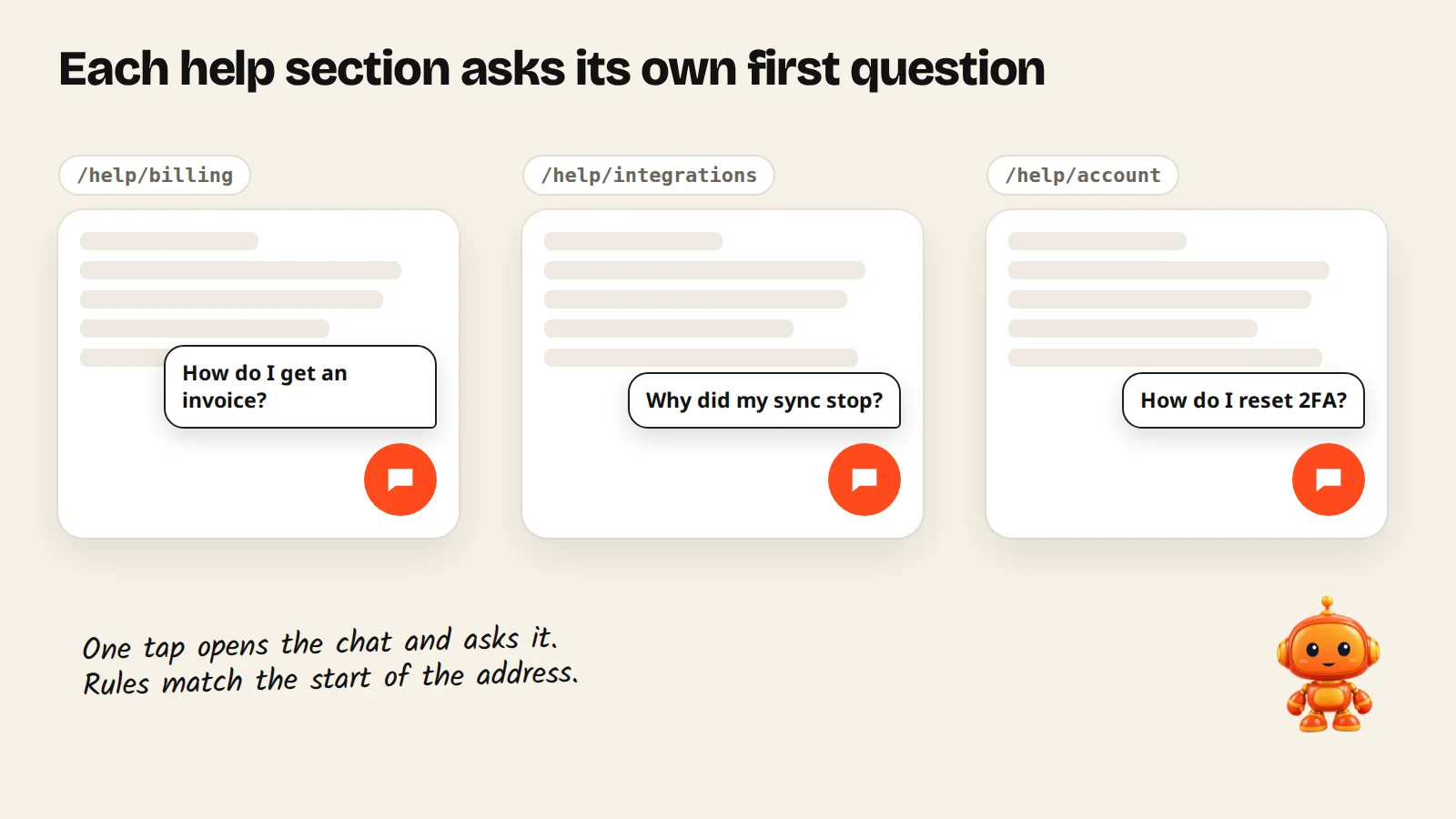
Most visitors won't type first. Conversation starters put a short question next to the chat button while the chat is still closed. One tap opens the chat and asks it.
With page rules, each section of your help center gets its own questions: an invoice question on billing articles, a sync question on integrations, a 2FA question on account settings. A rule can match the exact address, the start of it, or any address containing a word. Up to 10 questions per rule and 100 rules, and Suggest with AI writes ideas from your articles.
4. Add videos for the tasks that are easier to watch
Some tasks are faster to watch than to read. In Guides & videos you can add how-to videos: YouTube, Vimeo or Loom links, an MP4, MOV or WebM upload, or a screen recording. The Support agent shows the video when a customer wants to see how something works.
If the same agent is also installed inside your app, it can go one step further with Guide Me and show the customer where to click on the real screen. That is covered in AI support agent for SaaS onboarding.
5. Decide what happens when it can't answer
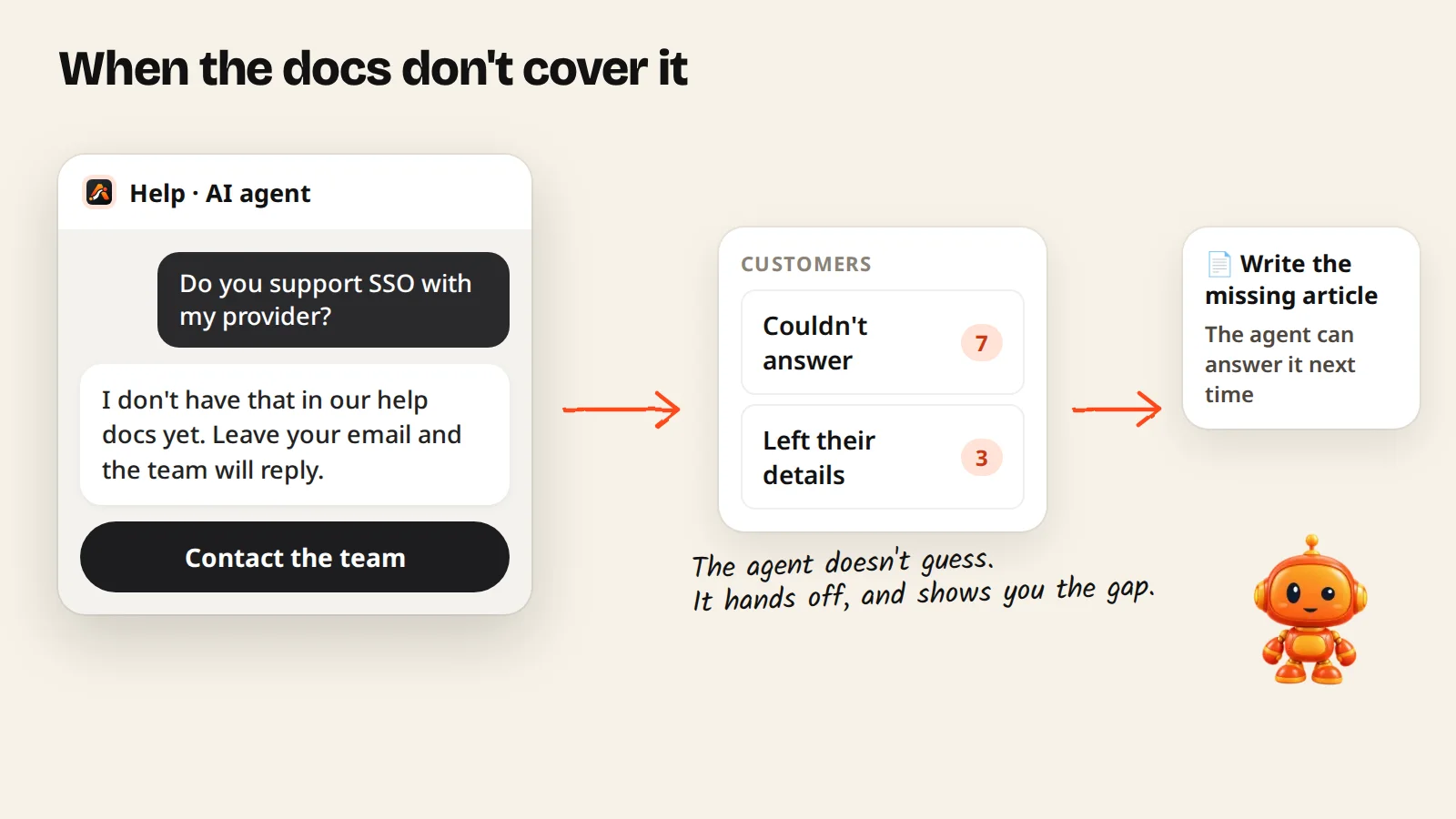
No help center covers everything. Give the agent a way to hand off: a contact form, a page, a phone number or a message link. When the answer isn't in your articles, the agent says so and offers that next step. With the contact form on, you get an email alert when someone leaves their details.
6. Use the Couldn't answer list as your writing plan
In Customers, filter by Couldn't answer. Each conversation there is a question your help center doesn't cover yet, in the customer's own words. Write the missing article, import it, and the agent can answer that question next time.
Also check Bad feedback: the answer existed but didn't help, which usually means an article is unclear or out of date. See how the Couldn't answer list works.
A checklist for this week
- Import your help center into one knowledge group.
- Create a Support agent with that group.
- Add the script to your help center.
- Add starter questions to your three busiest sections.
- Turn on a contact form or another hand-off.
- Next week: write articles for the top three Couldn't answer questions.
Plans
The Support agent is available on every plan, including Free. Plans differ in conversations per month and in how many documents you can keep: 100 on Free, 300 on Starter, 2,000 on Growth and 10,000 on Pro. See pricing.
Summary
- Search gives a list. An agent reads the articles and gives the answer.
- Import your help center, keep it in its own group, and re-import after changes.
- Starter questions per section get customers to ask.
- When the answer isn't there, the agent hands off instead of guessing.
- The Couldn't answer list tells you which article to write next.
Start free and put an agent on your help center, or read more about the Support Agent.