

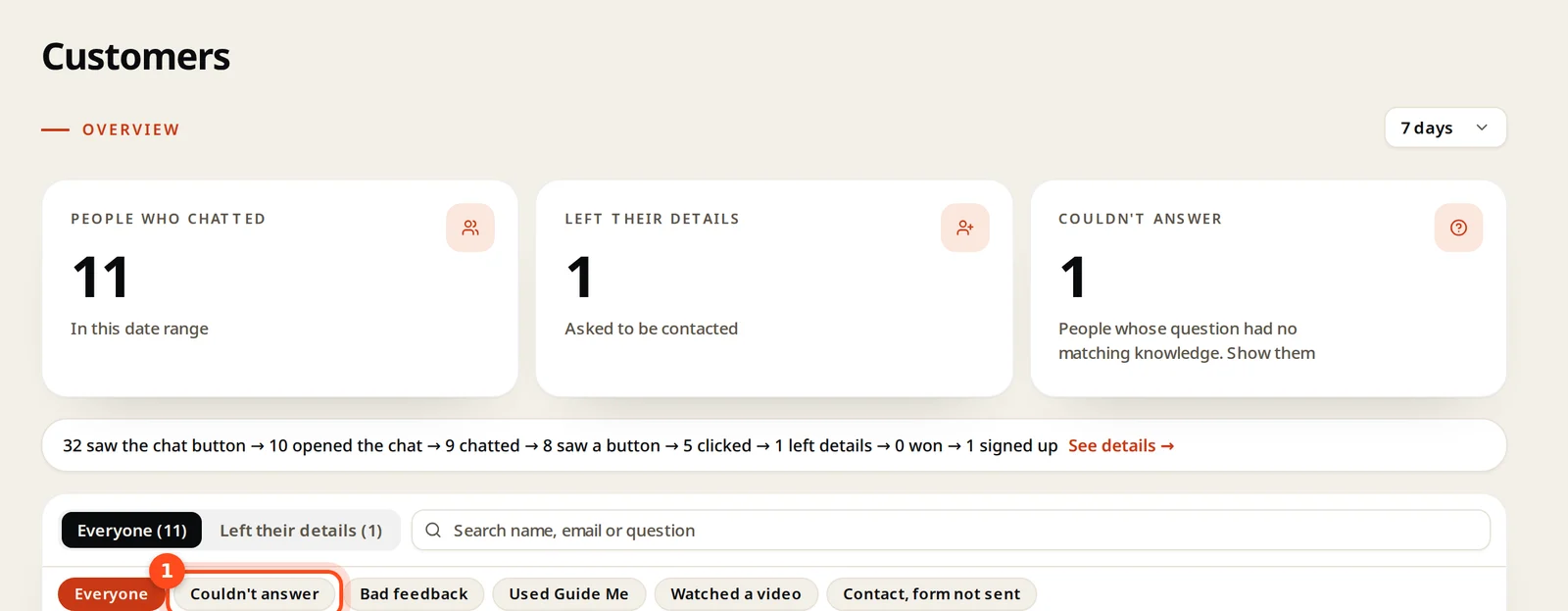
Customers → Couldn't answer lists questions with no matching knowledge. Add the answer with Write information, check it is Ready and selected for the agent, then ask again with Test agent.
When your agent has no matching knowledge, it says so instead of guessing, and the question lands in Customers → Couldn't answer. Check it every week: it's your to-do list.
The 10-minute weekly routine
- Open Customers and click the Couldn't answer filter. Also check Bad feedback.
- Open each conversation to see the exact question.
- Add the answer: Knowledge → Add knowledge → Add manually → Write information. See Write an answer.
- Check it shows Ready and is in a group the agent uses.
- Ask the same question with Test agent.
Why an answer can still be missing
| Cause | Fix |
|---|---|
| The item isn't selected for the agent | Agent page → Knowledge → Change selection |
| Still processing | Wait for Ready |
| The answer is buried in a long page | Write a short, separate answer |
| Different words than the customer uses | Add the customer's wording to the text |