

A practical setup for SaaS teams: put an AI support agent inside your app so new users get answers, see where to click and finish setup, and you see where they get stuck.
The first week decides whether a new user stays. That is also the week they have the most questions: where is this setting, what does this word mean, why did this fail. Most of them never write to support. They get stuck, close the tab, and do not come back.
An AI support agent inside your app catches those moments. The user asks in their own words, the agent answers from your help docs, and when the answer is "go here, click this", it shows them on the real screen. This post walks through the setup we recommend for SaaS onboarding with AgentGuide, step by step.
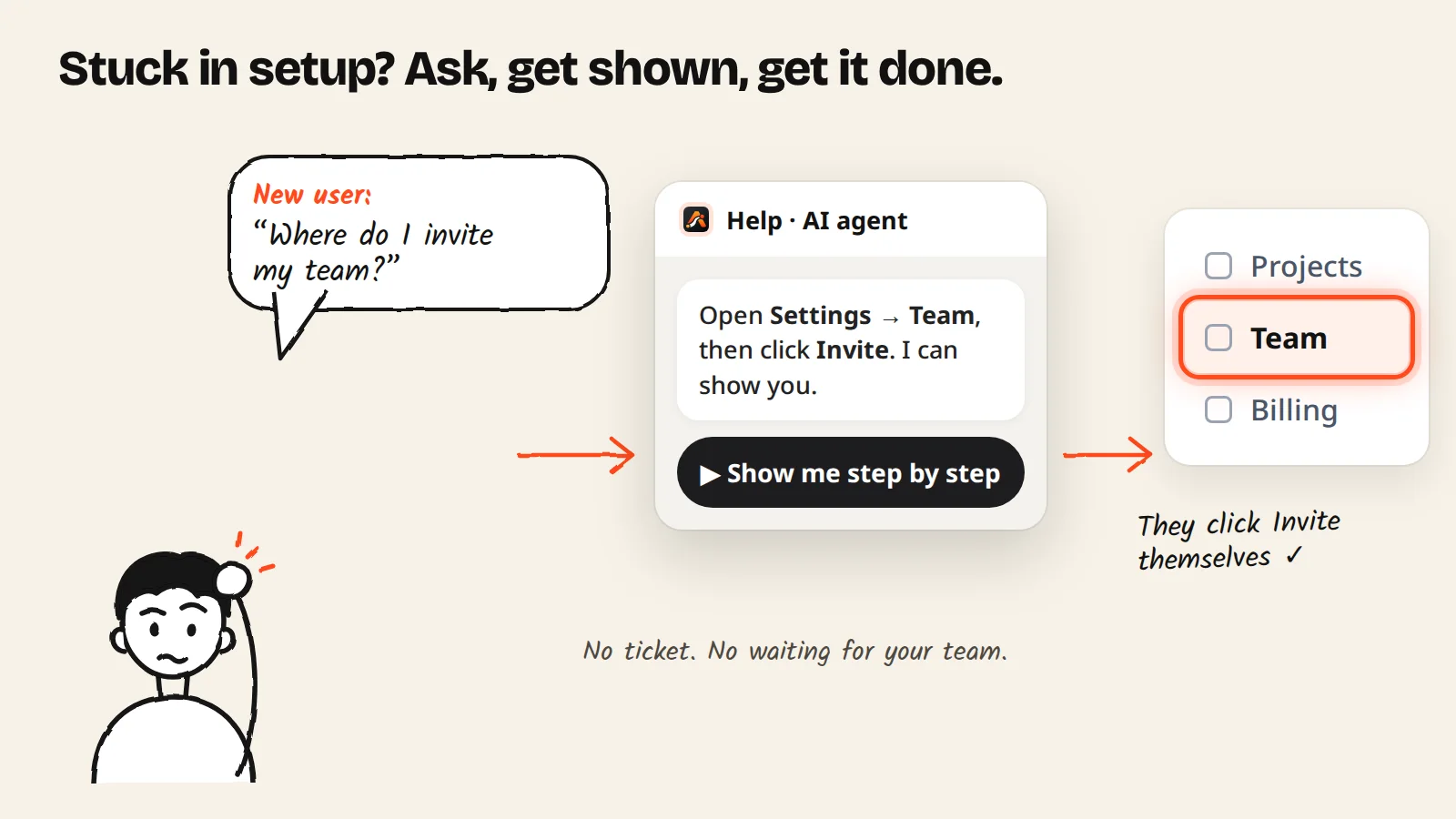
Where new users get stuck
Look at your first-week support tickets and you will usually find four kinds of trouble:
- They can't find it. The feature exists, but the menu name is not the word they think in.
- They don't know what to ask. A blank chat box on a settings screen is easy to ignore.
- Something failed. They see an error and describe it as "it doesn't work".
- They leave quietly. No ticket, no feedback. You never learn what went wrong.
The setup below has one part for each.
1. Put the Support agent inside your app
Create a Support agent (Agents → Create agent). It answers questions, offers Guide Me to show where to click, and can show how-to videos. If your website also needs to sell, a Sales & Support agent does both in one (Growth plan and up).
Install it with the same one-line script you would use on a website. It works in single-page apps (Next.js, React, Vue, Angular), and the chat stays open while users move between screens.
If your users sign in, identify them: your server signs the user ID, and the page passes it to the agent. Each user then keeps their own conversation on every device, and on a shared computer the next person doesn't see the previous chat.
2. Give it the knowledge a new user needs
The agent answers only from the knowledge you give it, so start with the pages a new user reads: getting started, account setup, your three or four core tasks, and common errors. You can import your help center pages, upload PDF, DOCX, TXT or MD files, or write an answer by hand.
Keep onboarding content in its own knowledge group and give that group to the agent. Old sales material or internal notes then can't leak into answers. (We wrote more about this in how to train an AI agent on your help docs.)
3. Give each screen its own first questions
Many users won't type the first message, and many never open the chat at all. Conversation starters solve both. While the chat is still closed, a short question pops up next to the chat button, for example "How do I invite my team?". One tap opens the chat and sends that question, so the user gets an answer without typing anything. If you add several questions, they take turns, and the user can close them with ×. Once the chat is open, the same questions also appear inside it as buttons.
The useful part for onboarding is page rules. Each screen of your app can have its own questions: an invite question on your team settings, a connection question on integrations, a plan question on billing. A rule can match the exact address, the start of it, or any address that contains a word. You can add up to 10 questions per page and up to 100 page rules, or click Suggest with AI to get ideas from your knowledge.
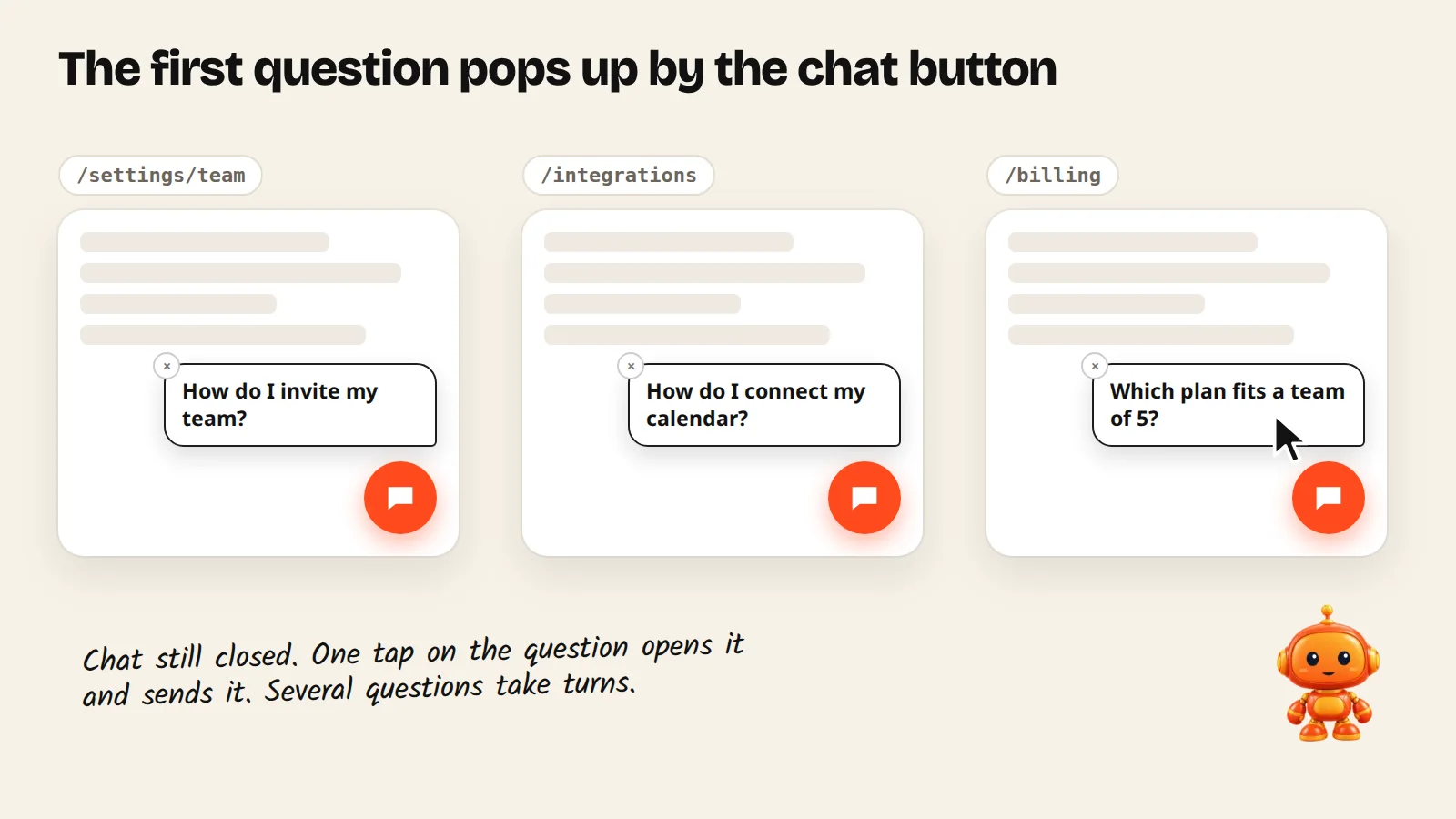
After a week, check Tapped N times on each question and replace the ones nobody taps. Details are in the conversation starters docs.
4. Record guides for the first-week tasks
This is the part a plain chatbot can't do. With Guide Me, the answer comes with a button to show the way, and each step is highlighted in your real app.
Pick the tasks every new user has to do: invite the team, connect the first integration, create the first project, change a setting. Record each one once in your app (or let AI write the steps from a how-to document), test it with Try it here, and turn it on.
Guide Me is built to be safe inside someone's account. The assistant can open menus and tabs for the user. Typing, saving, sending and paying are always left to the user. It brings them to the right screen and points at the button, and they make the final click. Why Guide Me stops at the final step explains the reasoning. For the full recording walkthrough, see how to show users where to click.
5. Let users send a screenshot
When something fails, a screenshot explains faster than a description. Turn on Let customers send a photo on the agent page, and users can attach a screenshot. The agent looks at it, tells them the next step from your knowledge, and can offer Guide Me for the fix.
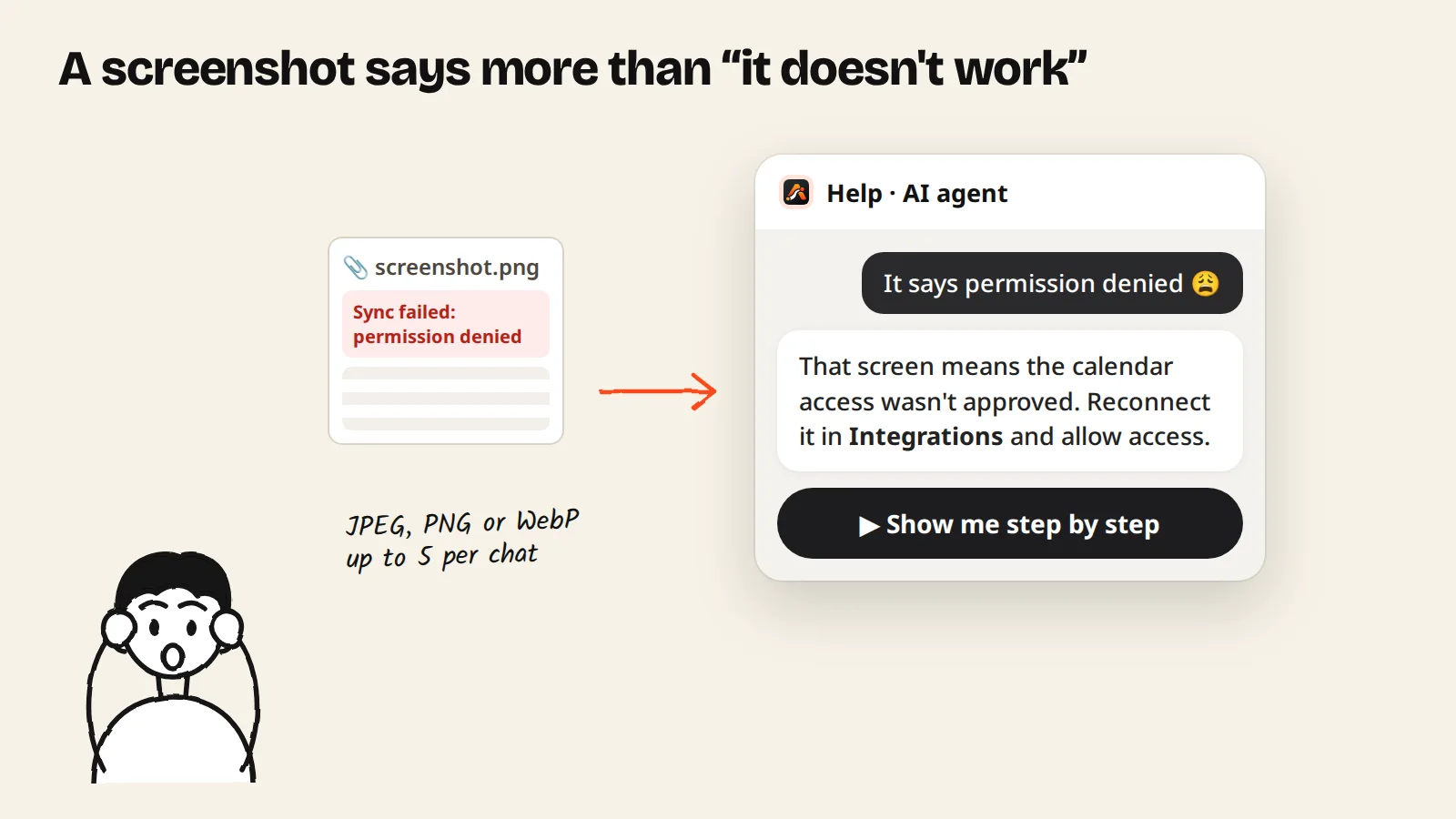
Images can be JPEG, PNG or WebP, up to 5 MB each and 5 per conversation, and they are deleted after 90 days. See chat images.
6. Review once a week
The quiet leavers are the hardest to see. The Customers area shows every conversation, with filters for Couldn't answer, Bad feedback, Used Guide Me, Watched a video and Left their details.
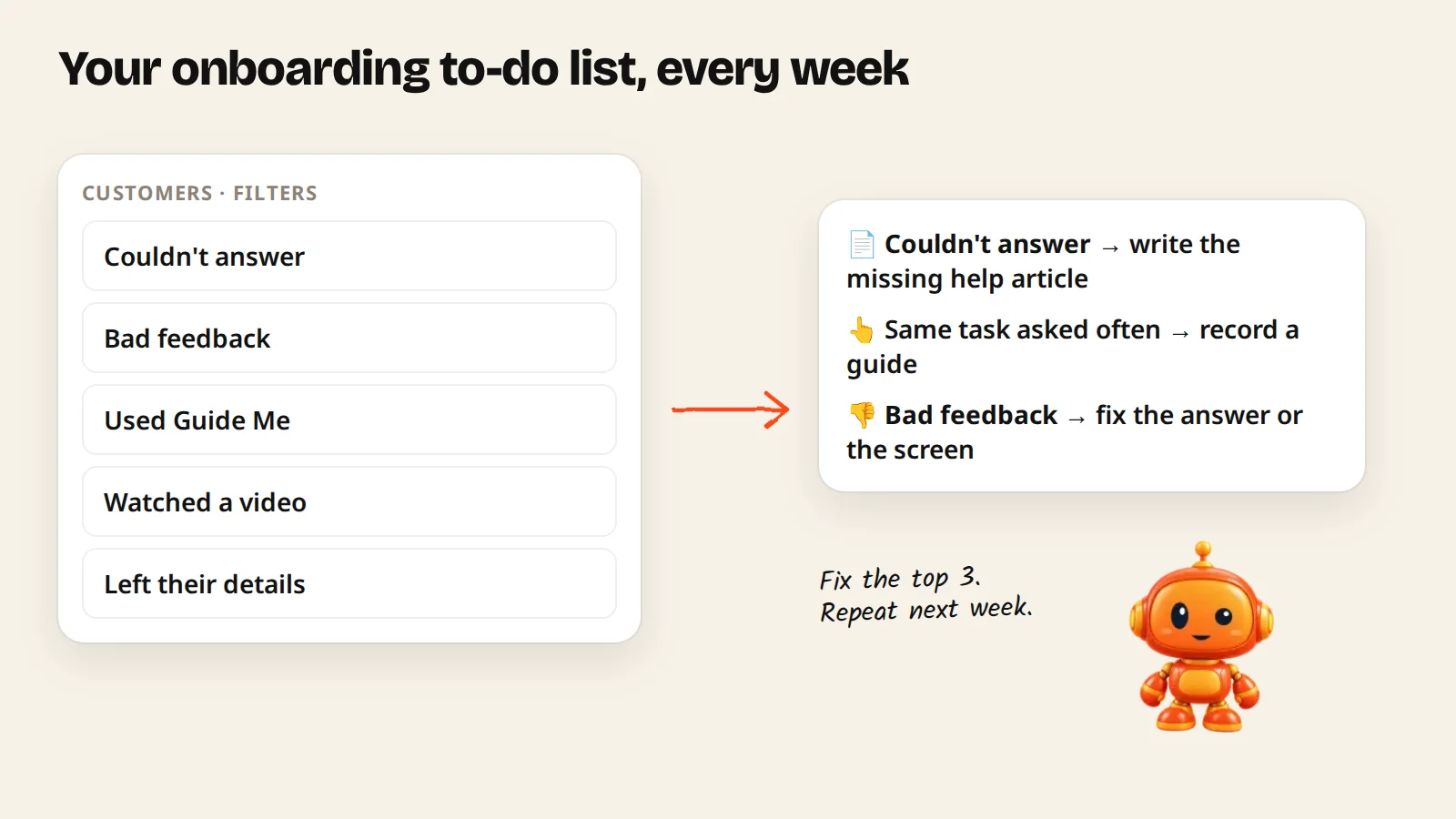
Use it as a to-do list:
- Couldn't answer: a help article is missing. Write it, and the agent can answer next time. (How the Couldn't answer list works.)
- The same task asked again and again: record a guide for it.
- Bad feedback: the answer was wrong or the screen is confusing. Both are worth fixing.
If you want to know whether chatting helps people finish setup, call AgentGuide.track('setup_complete') (or any outcome name) at the moment a user finishes. An outcome counts as "from a chat" when the same visitor chatted with your agent in the last 30 days, and results show under Analytics → Outcomes.
A first-week checklist
- Create a Support agent and install the script in your app.
- Add your getting-started and setup articles in one knowledge group.
- Add starter questions to your three busiest setup screens.
- Record guides for your three most-asked "how do I…" tasks.
- Turn on photo uploads.
- Next week: open Couldn't answer, fix the top three.
Plans
The Support agent and Guide Me are included in every plan, including Free. Plans differ in conversations and in how many guides and videos you can keep: 3 on Free, 5 on Starter, 50 on Growth and 300 on Pro. Sales & Support in one agent starts on Growth. See pricing.
Summary
- New users get stuck in the first week, and most never write to support.
- An in-app Support agent answers from your docs and shows the way with Guide Me.
- Starter questions per screen get people to ask in the first place.
- Screenshots turn "it doesn't work" into a clear next step.
- The Couldn't answer list tells you what to write or record next.
Start free and put a Support agent in your app, or read more about the Support Agent.