

On the agent page, click Customize to change the theme and color, the chat button (bubble or mascot), its position, the greeting, the questions to start a chat, and which websites may show it.
Open your agent and click Customize (next to Customize widget). The preview on the right updates as you edit. Click Save when you're done.
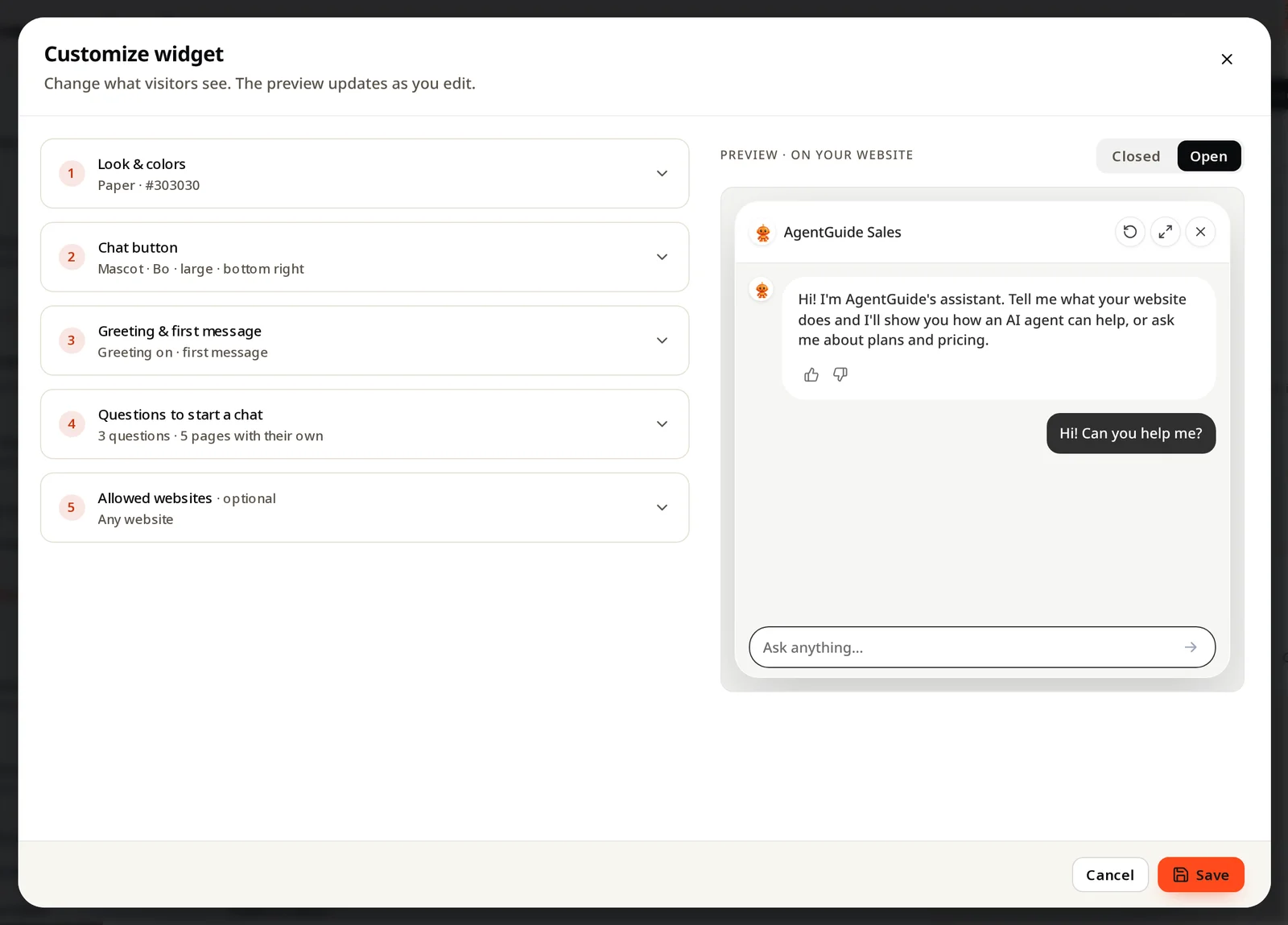
The five sections
| Section | What you change |
|---|---|
| 1. Look & colors | Theme (for example Paper) and main color |
| 2. Chat button | A bubble or a mascot, its size, bottom right or bottom left |
| 3. Greeting & first message | The small greeting next to the button, and the first message inside the chat |
| 4. Questions to start a chat | Tap-to-ask questions. See Conversation starters |
| 5. Allowed websites (optional) | Only these websites may show the agent. Empty = any website |
Tips
- Keep the greeting short and specific: "Not sure which plan fits? Ask me" works better than "Hi! How can I help?".
- Use the Closed / Open switch above the preview to see both states.
- Changes show on your website right after you save. No need to install again.