

Check Show on your website, that the script is in <head> on every page, that the site is published and the cache cleared, Restrict by domain, and your Content Security Policy.
Work through this list from the top. Most problems are one of the first three.
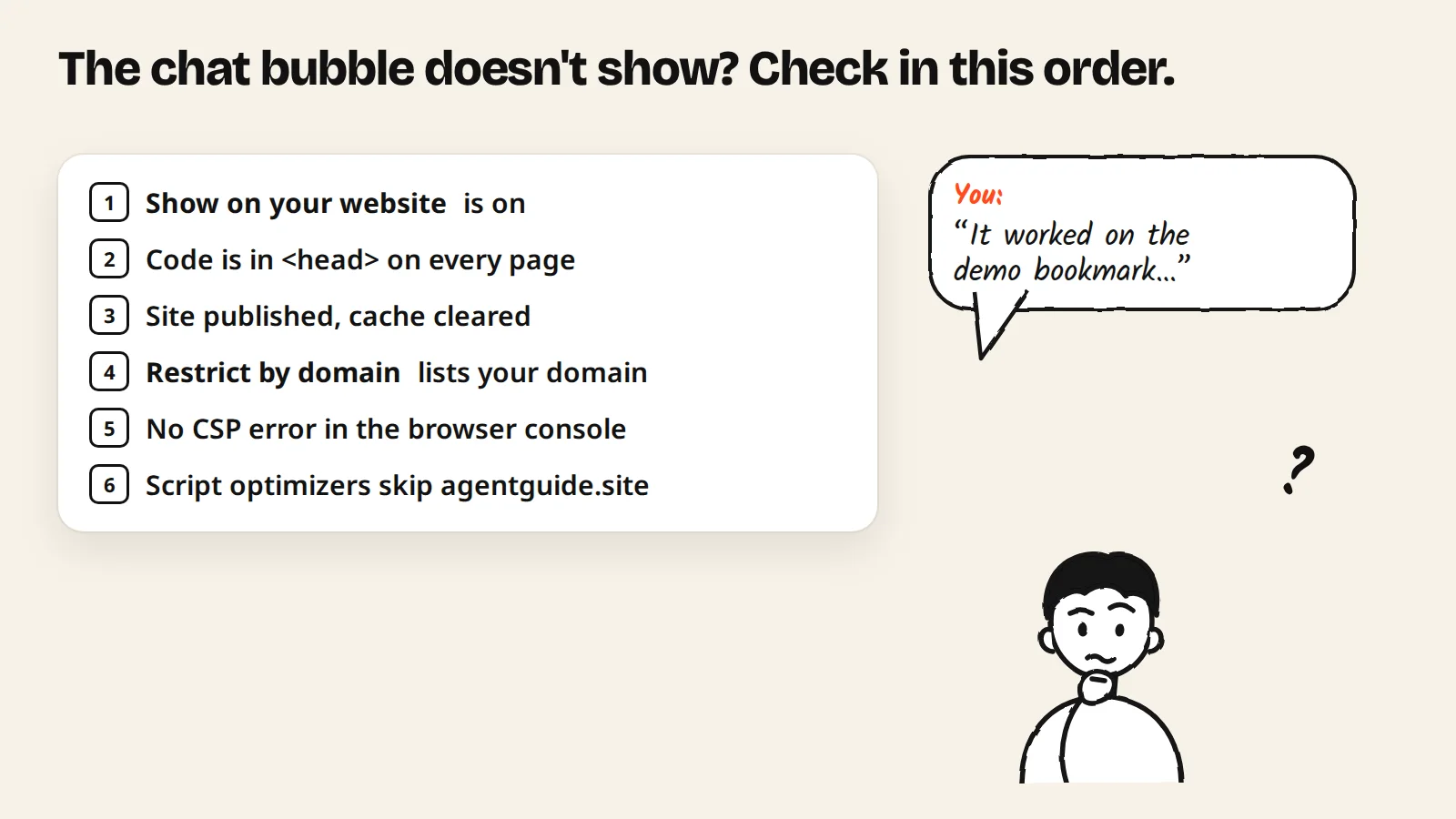
The chat doesn't appear on my website
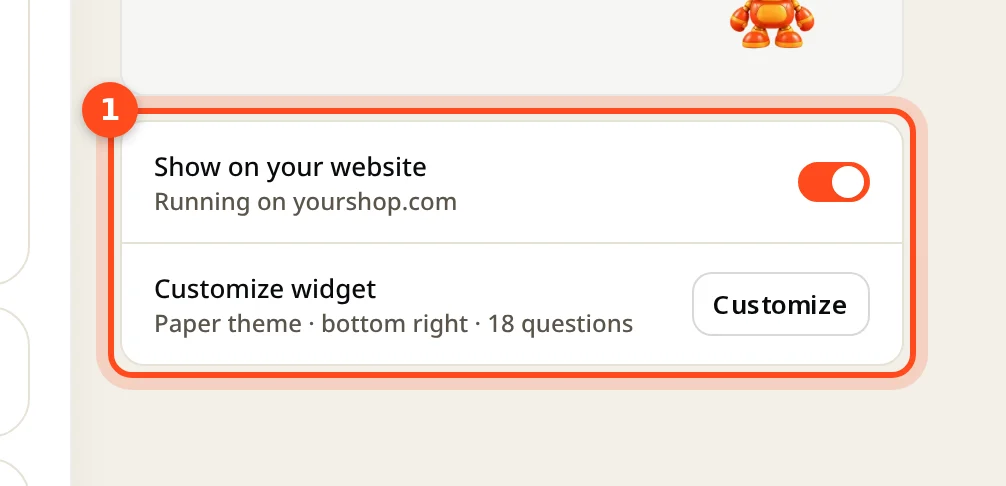
- Show on your website is off. Open the agent and turn it on. When it is off, the agent stays hidden even with the code installed.
- The code isn't on every page. It must be inside
<head>of the template every page shares, or in Google Tag Manager with the All Pages trigger. - The site wasn't published, or a cache serves old pages. On Wix, Webflow and similar builders, publish after adding the code. With a caching plugin or a CDN, clear or purge the cache and reload.
- Restrict by domain is on and your domain isn't in the list. Add it, or
*.example.comfor subdomains. - A Content Security Policy blocks it. Look in the browser console for "Refused to load the script". See Allow AgentGuide in a CSP.
- A script optimizer delays or combines JavaScript. Exclude
agentguide.sitein plugins such as WP Rocket or LiteSpeed.
The install window still says "Waiting for your website…"
- Open a real page of your website (not the AgentGuide dashboard) after adding the code, and keep the install window open for a few seconds.
- On Wix and Webflow, check the published address, not the editor preview.
It shows with the demo bookmark but not on my site
The bookmark adds the agent only to your own browser tab. Visitors see it after you install the code.
The agent answers "I don't know" or answers wrongly
- The agent only uses the knowledge selected for it: check Knowledge → Change selection on the agent.
- Check the document's Agent can use it status is Ready.
- Add a clear, specific answer; one topic per document works best. Then ask again with Test agent.
Leads don't arrive by email
- Check the contact form is on and Lead notifications → Email is on for the agent.
- In Account settings → Notifications, new addresses must confirm by email first. Use Send test, and check spam.
My conversations ran out
Chats in progress finish; new visitors see your contact option. Paid plans reset monthly with a 10% buffer; Free doesn't reset. See Plans and limits.
Still stuck?
Email anhle@agentguide.site with your website address and what you see. A screenshot of the browser console helps.