

Install the free WPCode plugin, paste your AgentGuide script into Header & Footer → Header, and save. No theme editing needed.
The simplest way to add AgentGuide to WordPress is the free WPCode plugin, so you don't edit theme files and the code survives theme updates.
Steps
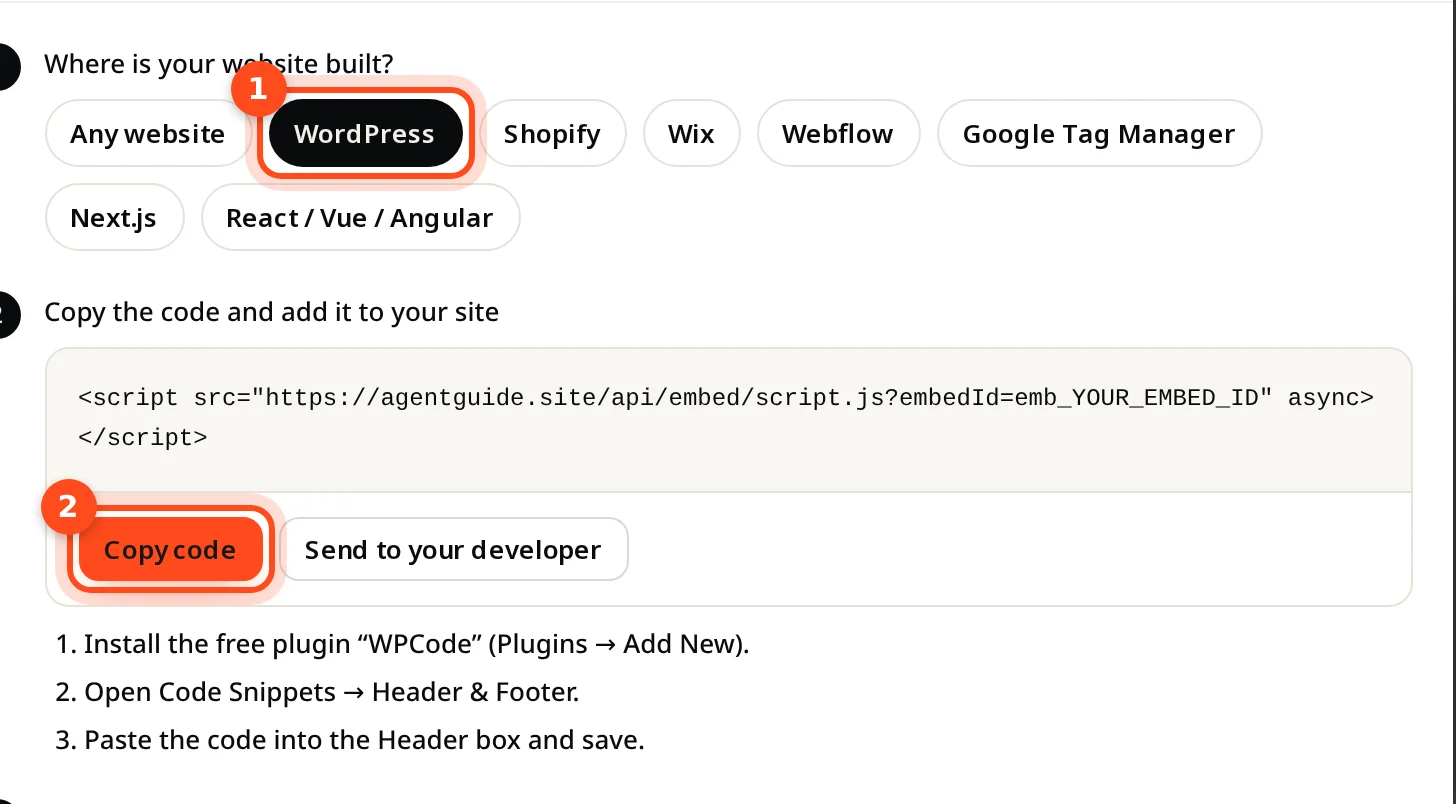
- In AgentGuide, open your agent → Install agent, pick WordPress and click Copy code.
- In WordPress, go to Plugins → Add New, search for WPCode and install and activate it.
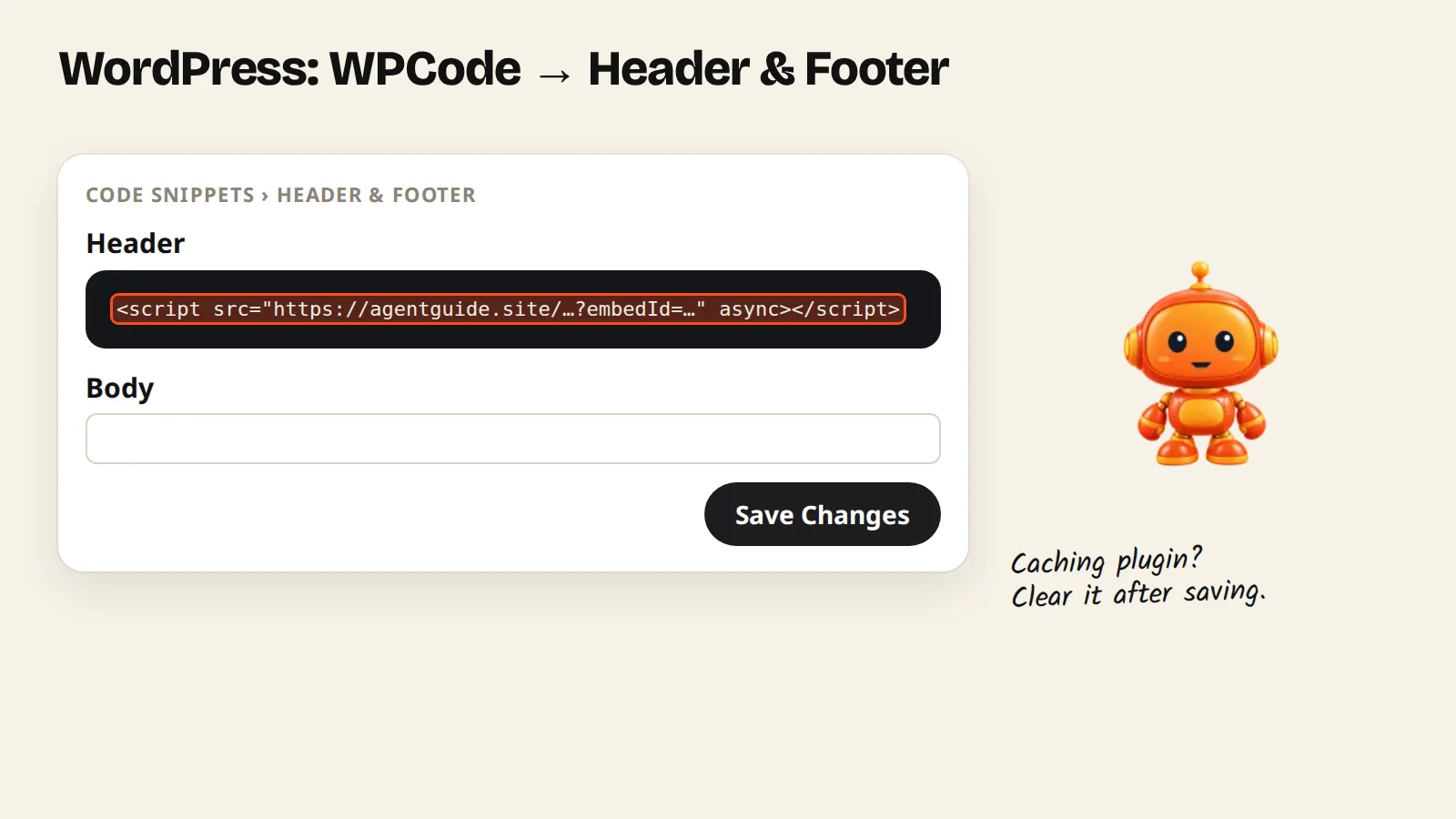
- Open Code Snippets → Header & Footer.
- Paste the code into the Header box and click Save Changes.
- Open any page of your site. The install window in AgentGuide changes to Running on your address.
The code looks like this (yours has your own embed ID):
<script src="https://agentguide.site/api/embed/script.js?embedId=YOUR_EMBED_ID" async></script>If you use a caching plugin
Plugins like WP Rocket, LiteSpeed Cache or W3 Total Cache may serve old pages. Clear the cache after saving, then reload your site.
If a plugin combines or delays JavaScript, exclude agentguide.site from those options so the agent loads normally.
WooCommerce stores
The same Header snippet covers every page, including product, cart and checkout pages. To let a Sales agent recommend your products, import them in Knowledge → Add knowledge → Import from website → Products, or upload a CSV or JSON product list.